
MailStore Client (Client) Distribution
A MailStore Server installation includes the MailStore Client as a Windows Installer package (MSI) that can be installed on client machines using software distribution. You can find the MSI package via the link on your desktop titled "Install MailStore Client on Other Computers" or in your MailStore Server installation folder's Setup.


MailStore Client (Client) Distribution
A MailStore Server installation includes the MailStore Client as a Windows Installer package (MSI) that can be deployed to client machines. You can find the MSI package on your desktop via the provided link, or in the Setup folder of your MailStore Server installation directory.
This article explains how to deploy and configure the MailStore Client using Active Directory group policies.
Installation
To deploy the MailStore Client via Active Directory, you need to copy the MSI package to a shared location on your server that is accessible by all domain users. Once the deployment is configured, the MailStore Client will automatically install during the next user login. This process is transparent to users and does not require any interaction from them.
Configure the software deployment as follows:
- Open the Group Policy Management Console on your domain controller.
- Right-click on the Group Policy Objects management folder and select New to create a new group policy object named "MailStore Client Deployment".
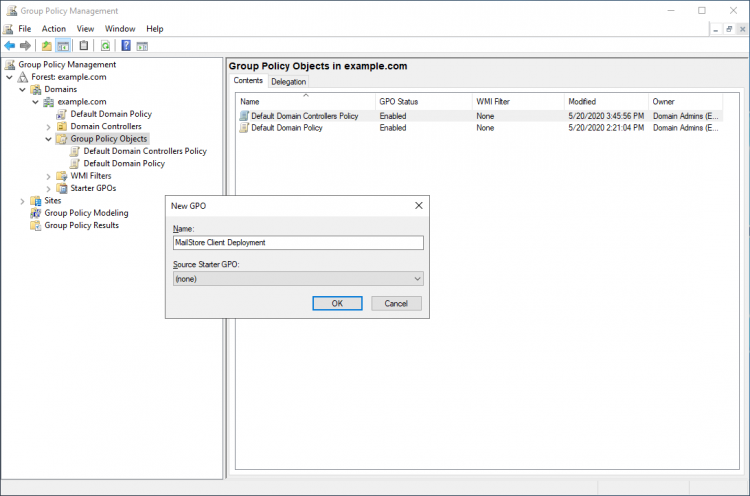
- Right-click on the new GPO and select Edit....
- Expand User Configuration > Policies > Software Settings.
- Right-click on Software Installation and select New > Package....
- Select the MSI package mentioned above. Please note that the file path must be entered in UNC format (e.g., \Server\Setup\MailStoreSetup...) and domain users must have read access to this share.
- In the following dialog, select Advanced and click OK.
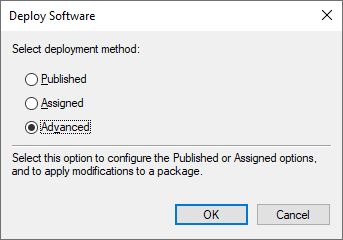
- On the next screen, please set the options under the Deployment tab as shown below:
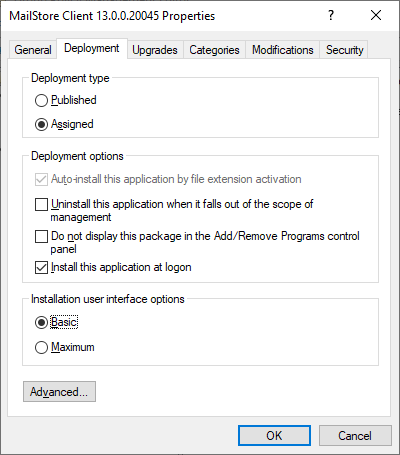
- Click OK to confirm all settings.
- The group policy should now look similar to the following:
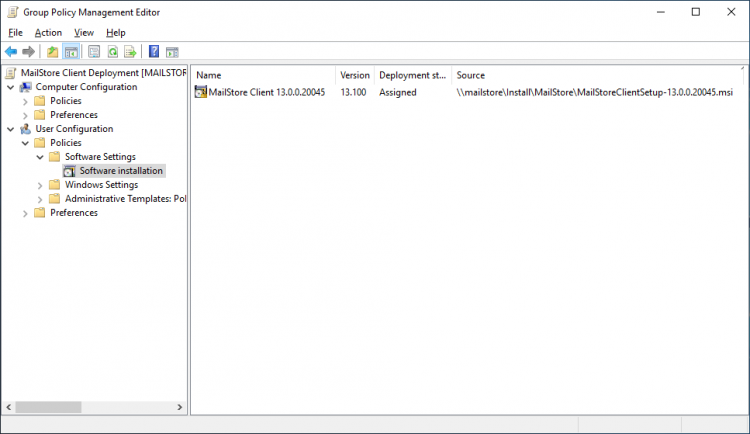
- Close the Group Policy Editor.
The group policy is now configured and can be linked to the relevant user objects. Linking is done using Organizational Units (OU).
- Highlight the organizational unit (OU) that contains the desired user objects, right-click on the OU (e.g., Seattle), and select Link an Existing GPO....
- In the dialog box, select the GPO, highlight MailStore Client Deployment, and click OK.
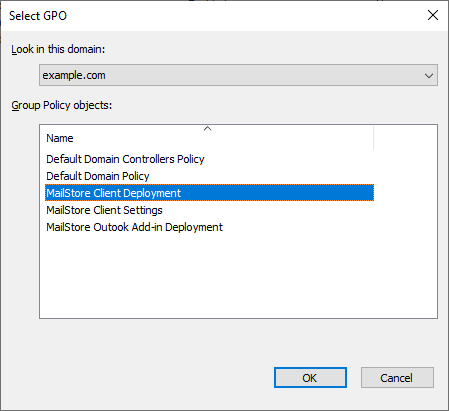
- The group policy is now linked via the organizational unit and will apply to the user objects listed here. The settings will take effect during the next login on the Windows clients.
Please note: To prevent issues when deploying software using group policies, the following settings should be applied via group policy for computer objects representing Windows clients of MailStore users:
- Computer Configuration > Administrative Templates > System > Command Prompt > Run command prompt windows as administrators
- Configuration > Administrative Templates > System > Logon > Always wait for the network at computer startup and logon
Update
The MailStore Client MSI is primarily a loader that installs the latest components of the MailStore Client from the MailStore Server. When the loader itself needs updating, group policies can automatically perform updates on MailStore user computers. To enable clients to update automatically, please follow these steps to edit the existing MailStore Client Deployment group policy:
- Open the Group Policy Management Console on your domain controller.
- Navigate to the Group Policy Objects management folder.
- Right-click on the existing MailStore Client Deployment GPO and select Edit....
- Expand User Configuration > Policies > Software Settings.
- Right-click on Software Installation and select New > Package....
- Select the updated MailStore Client MSI package. Please note that the file path must be entered in UNC format (e.g., \Server\Setup\MailStoreSetup...) and domain users must have read access to this share.
- In the following dialog, select Advanced and click OK.
- On the next screen, please set the options under the Deployment tab as shown below:
- On the Upgrades tab, a list of upgradable packages is displayed. Select the Upgrade existing package option for current packages.
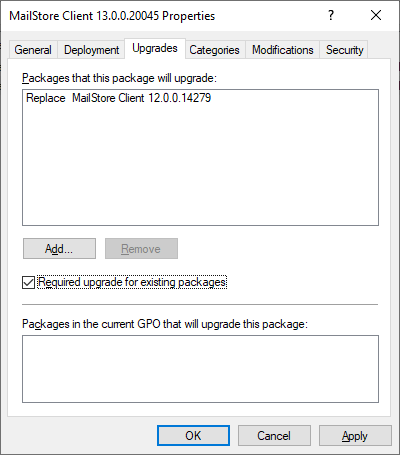
- Click OK to confirm all settings.
- The group policy should now look similar to the following:
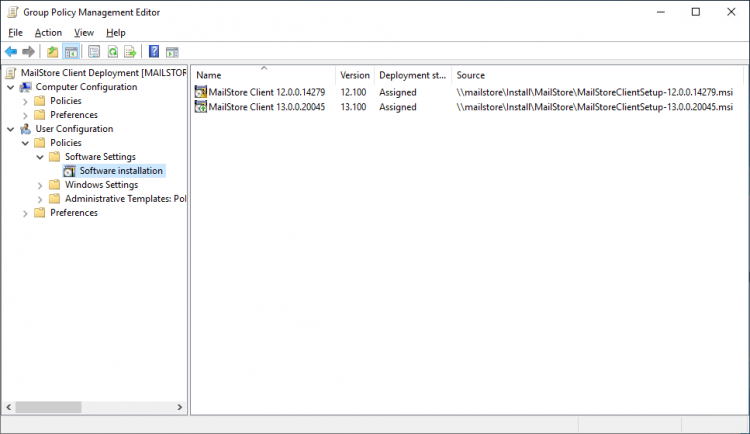
The MailStore Client installer will be updated during the next login on the users' Windows workstations.
Configuration
If MailStore Server is used within an Active Directory infrastructure, the MailStore Client and MailStore Outlook Add-in can be configured using group policies. Settings configured via group policies override local settings and cannot be changed by users.
For this purpose, group policy templates can be used as ADMX files (for Windows 7 SP1 and Windows Server 2008 R2 or higher).
Installing the ADMX Template
Group policy templates can be managed locally on a management workstation or centrally in a domain. For more details, please refer to Microsoft Technet.
Installing the ADMX Template to Local Store
- Download the ADMX templates to your management workstation.
- Extract the package while preserving the folder structure to the %systemroot% directory.
Installing the ADMX Template to Central Store
Please note: This method should only be used if you already have a central store for group policies, otherwise, the group policies stored locally will no longer be accessible.
- Download the ADMX templates to your domain controller.
- Extract the package while preserving the folder structure to the domain\policies directory within the SYSVOL folder (default: %systemroot%\sysvol\domain\policies).
To verify the installation and proceed with further configuration, please follow these steps:
- Open the Group Policy Management Console.
- Right-click on the Group Policy Objects management folder.
- Select New and create a new group policy object named "MailStore Client Settings".
- Right-click on the new GPO and select Edit....
- Expand User Configuration > Policies > Administrative Templates.
- If the templates are installed correctly, you should see a MailStore entry and sub-entries for MailStore Client and MailStore Outlook Add-in.
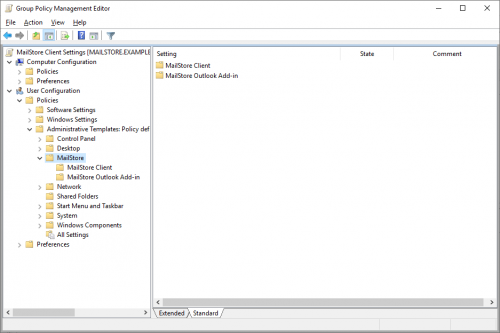
Configuring Policy Settings
- Open the Group Policy Management Console.
- Right-click on the Group Policy Objects management folder.
- Right-click on the existing group policy object named "MailStore Client Settings" and select Edit....
- Expand User Configuration > Policies > Administrative Templates.
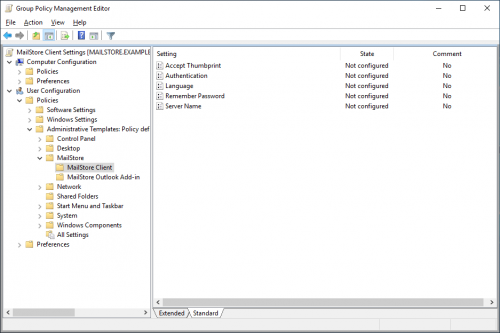
The following settings are supported by the current MailStore Client:
- Authentication Method: Sets the authentication method to either Standard Authentication or Windows Authentication. If set to Windows Authentication, the Server Name must also be specified.
- Language: Sets the display language of the MailStore Client. To use the operating system's language, select System Language.
- Remember Password: If this setting is enabled, the client stores the user password locally after it is entered. This feature is only available if the authentication method is set to Standard Authentication.
- Server Name: If this parameter is provided, the MailStore Client always connects to this server. If the authentication method is also set to Windows Authentication, login to MailStore Server occurs automatically without any user interaction (Single Sign-On). If the MailStore Client is configured to connect to a different port than the default (8460), this parameter should be provided as Server Name:Port.
Applying Policy Settings
To apply these settings to users, the group policy must be linked to the relevant user objects. Linking is done using Organizational Units (OU).
- Highlight the organizational unit (OU) that contains the desired user objects, right-click on the OU (e.g., Seattle), and select Link an Existing GPO....
- In the dialog box, select the GPO, highlight MailStore Client Settings, and click OK.
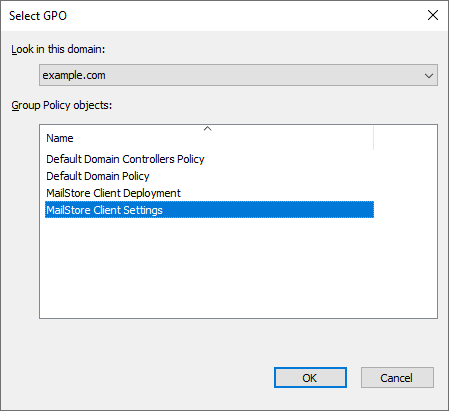
- The group policy is now linked via the organizational unit and will apply to the user objects listed here. The settings take effect during the next login on the Windows clients.
Uninstallation
Just like deployment, software package uninstallation can also be done using group policies. Please proceed as follows:
- Open the Group Policy Management Console on your domain controller.
- Navigate to the Group Policy Objects management folder.
- Right-click on the existing MailStore Client Deployment GPO and select Edit....
- Expand User Configuration > Policies > Software Settings.
- Right-click on the package to be removed and select All Tasks > Remove....
- In the following dialog, select Remove the software from users and computers immediately and click OK.
- Close all open windows and exit the Group Policy Editor.
The MailStore Client will be uninstalled during the next login on the users' Windows workstations.