
Usage of Network Attached Storage (NAS) - Network Attached Storage
(Redirected from Using Network Attached Storage (NAS)) Network Attached Storage (NAS) systems provide file-based access to their local storage for remote clients via special network protocols. In Microsoft Windows environments, the SMB or CIFS protocol is generally used to access files on a remote system. Throughout this article, the term NAS represents any computer system that can share its local storage via the SMB or CIFS protocol, whether it is a traditional Windows file server, a Linux server running a Samba service, or a special physical or virtual device with its own operating system and management interface.


Please note: A storage system connected via FibreChannel, iSCSI, or other block-level storage protocols is referred to as a Storage Area Network (SAN) storage. SAN storage is used like local disks (also known as Direct Attached Storage or DAS); no other configuration is required for MailStore Server to store its data.
MailStore Server can use NAS systems for storing production data or as a target for backups. In general, it is recommended to store production data locally and use NAS systems for backup data to achieve the best performance, reliability, and consistency.
No matter where the production data is stored, the archive can always be accessed via IMAP-compliant email clients such as MailStore Client, MailStore Web Access, MailStore Outlook Add-in, or integrated IMAP Server from other client computers.
For a successful operation, the NAS must meet the following prerequisites:
- The NAS should not be shut down, disconnected, or put into standby mode at any time; of course, if there is a MailStore Server service accessing the data on the NAS. Otherwise, data corruption may occur, which can lead to irreversible data loss.
- If possible, disable "Opportunistic Locking" for network shares where production data will be stored.
- Shared directories on the NAS should be excluded from anything that could prevent MailStore from accessing any files, such as server-side antivirus scans, real-time backups, file-level replication.
- When moving an existing MailStore database, the existing disk space should be at least twice the size of the current archive.
Creating a Network Share
To create a network share that can be used by MailStore Server, the following three steps are required:
- Create a special folder for MailStore data to be stored on the NAS.
- If that folder is not already shared on the network, share it via SMB or CIFS protocol. Please consult your vendor's documentation for instructions on how to share a folder on the network.
- Grant access rights to the computer or user object to access the network share and its contents, as explained below.
Authorizing a Computer Object
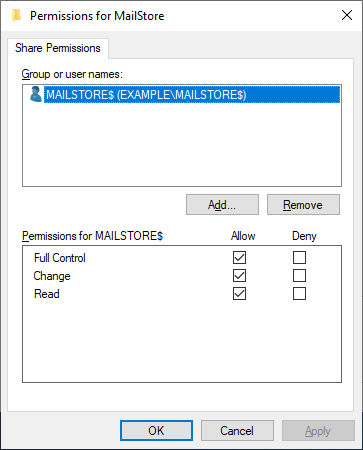
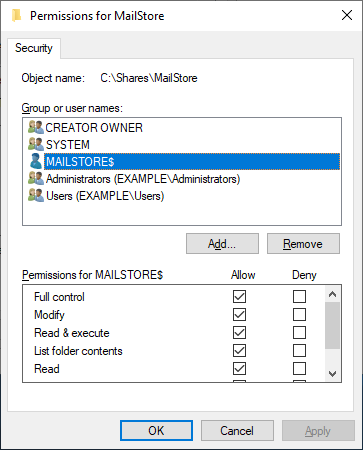
The MailStore Server service runs under the SYSTEM user account in Windows, so the SYSTEM user is identified by the computer object (e.g., SERVER01$) on which MailStore Server is installed. Therefore, access rights to the network share should be granted to the relevant computer object.
Please note: Granting access rights to computer objects requires that all related systems are part of an Active Directory domain. If this requirement cannot be met or the NAS system does not support granting access to computer objects at all, use the instructions in the Authorizing a User Object section instead.
- Grant full control rights to the computer object on the network share. This allows the local system account of the computer where MailStore Server is installed to access the network share.
- If file system permissions are required in the shared folder, you can also grant full control here.
Authorizing a User Object
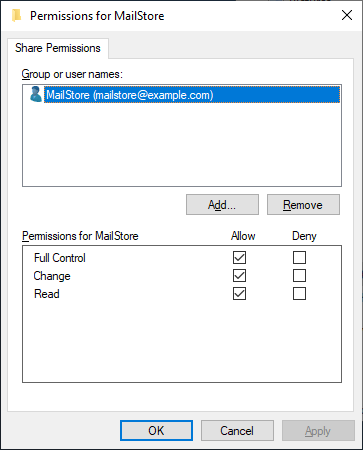
- A user object is created in the directory service used for local or NAS-based user authentication (e.g., Active Directory).
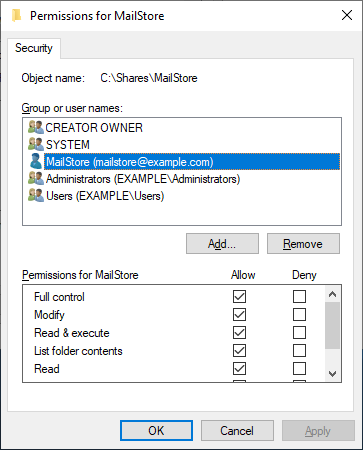
- Grant full control rights to the user object on the shared folder.
- If file system permissions are required, you can also grant full control here.
Installing MailStore Server on a NAS System
- Install MailStore Server on the desired machine. Detailed instructions can be found in the Installation section of the MailStore guide.
- Open the MailStore Server Service Configuration.
- Stop the MailStore Server service.
- Go to the General section and enter the full path to a directory in the network share provided by the NAS system in UNC notation (\computer\sharename\directory). In the example below, the NAS system's name is NAS01, the share name is MailStore, and the directory is MailArchive.\computer\sharename\directory
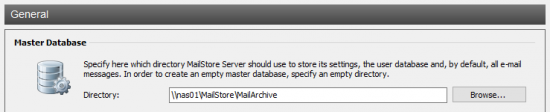
If access to the network share has been granted to a computer object, the MailStore Server service can be started by clicking the Start option in the MailStore Service Configuration interface.
If access to the network share has been granted to a user object, proceed to the next section.
Connecting to Network Shares
If access to the network share has been granted to a user object, MailStore Server should connect to the share during startup using this user object. To configure network share access for MailStore Server service, proceed as follows:
- Open the MailStore Server Service Configuration on the MailStore Server computer.
- Click Network Shares.
- Click Add....
- Enter the network share path in UNC notation into the Share Path field (\computer\sharename).
- Enter the username and password of the user object with access to the network share in the Username and Password fields. Important Notice: It is strongly recommended to always prepend the relevant computer or domain name to the username, for example. Here, it should be the main name of the NAS or, if applicable, the name of the Active Directory domain to which the NAS is joined and where the user object resides. computer\usernamecomputerdomain\usernamedomain
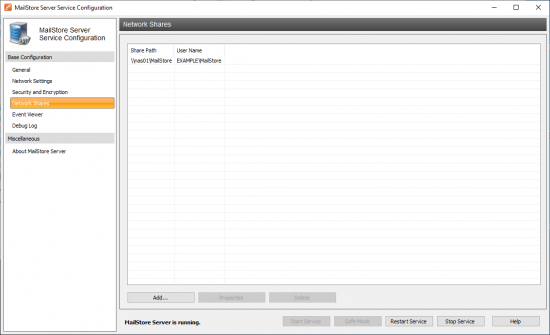
- Click OK.
- The MailStore Server service can now be started by clicking the Start option in the MailStore Service Configuration interface.
Please note: Due to different security contexts between the MailStore Server service and the MailStore Server Service Configuration application, the user interface does not provide any test functionality, so it is recommended to check for possible error messages in the Event Viewer after starting the service.
Moving the Archive to a Network Share
Moving the archive to a network share is explained in the article titled Moving the Archive.
Writing Backups to a Network Share
- First, create a network share on the NAS system.
- If permissions have been granted to a user object for the share, you need to configure a connection to the network share.
- Follow the instructions in the backup article.
Source: Using Network Attached Storage - NAS - MailStore Server Help