
MailStore Server Archive Migration
It is possible to move a single archive repository, its components, or the entire MailStore Server archive to a new fixed disk, machine, or network share at any time. The things required to successfully move an archive are explained in the following sections.


Moving an Entire Archive Store
Follow the instructions below to move an entire archive store to a different fixed disk or network share. The MailStore main database and all other archive stores remain unchanged.
When moving an archive store to a network share, the information from the Using Network Attached Storage (NAS) article is also applicable.
- Start the MailStore Client and log in as the MailStore user with administrator privileges.
- Go to Tools > Storage > Storage Points.
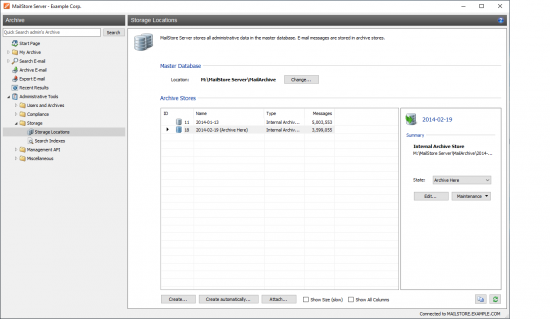
- Follow these steps for the archive store you want to move:
- Note the status and path. You can find this information in the summary next to the archive store list.
- Change the status to Disabled.
- In the file system, move the folder you wrote in the first step to the new location.
- Right-click on the context menu or in the details panel, click Edit....
- The Edit Archive Store Properties dialog opens.
- Change the base folder to the new folder. If a network share is used, enter the UNC path of the share, for example:
\\computer\myshare\folder. - Click Finish.
- Return the archive store status to the state you specified in the first step.
Components of an Archive Store
In MailStore, archive stores always consist of the following three components:
- Folder Information and Meta Data: Contains all data needed to create the folder structure and email list.
- Email Headers and Content: Contains the actual load of the archive.
- Full Text Index: Contains all data needed to search within emails and attachments. The full-text index can be rebuilt at any time. Additional information is available in the Search Indexes section.
These individual components can be moved to different physical storage locations. For example, you can move the folder information and metadata along with the search index to a fast storage medium to speed up folder operations and MailStore searches, while leaving the email content files on a slower storage medium.
To move parts of an archive store to another fixed disk or network share, follow these instructions. The MailStore main database and other archive stores remain unchanged.
When moving an archive store to a network share, the information from the Using Network Attached Storage (NAS) article is also applicable.
- Start the MailStore Client and log in as the MailStore user with administrator privileges.
- Go to Tools > Storage > Storage Points.
- Follow these steps for the archive store you want to move:
- Note the status. You can find this information in the summary next to the archive store list.
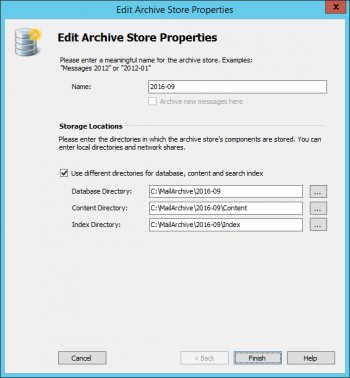 Change the status to Disabled.
- Right-click on the context menu or in the details panel, click Edit....
- The Edit Archive Store Properties dialog opens.
- Enable the option Use different folders for database, content, and search index. The individual archive store components' folders are displayed.
- In the file system, move the folders to their new locations.
- In the dialog, change the base folders to the new folders. If network shares are used, enter the UNC paths of the shares, for example:
\\computer\myshare\folder. - Click Finish.
- Return the archive store status to the state you specified in the first step.
Moving the Archive to a Different Fixed Disk
To move a MailStore Server installation that contains all archive stores under the main database directory (default: C:\MailArchive) to a different fixed disk, follow these steps. The MailStore program directory has not changed: C:\MailArchive.
- Stop the MailStore Server service via MailStore Server Service Configuration.
- Move the main database directory (default:
C:\MailArchive) and all its subdirectories to the new location. The folder structure should remain unchanged. - Use MailStore Server Service Configuration to change the "Master Database" directory to the new location.
- Restart the MailStore Server service.
Note: Please note that an external fixed disk might have a negative impact on the performance of the MailStore Server.
Please note: Archive stores not stored using a relative path to the main database may need to be re-added or have their paths adjusted after moving. For details on managing archive stores, refer to the Storage Locations section of the MailStore Server guide.
Moving the Archive to a New Machine
Important Notices:
- To move your MailStore archive to a new machine, you will need your license key (Product Key) and the computer name (Machine Name) of the machine where MailStore Server was previously installed. Both can be found in the Tools > License Management section of the MailStore Client.
- Only transitions to the same or newer versions are supported.
- If you want to update to MailStore 25.1 or newer, please read the MailStore Server Update Notifications and Update Notifications for MailStore Server 25.1 or newer.
Follow these steps to move a complete MailStore Server archive, including all users, settings, and emails, to a new machine:
Technical Tip: How to Migrate MailStore Server
- Create a backup of the archive.
- Stop the MailStore Server service via MailStore Server Service Configuration on the current machine.
- Move the main database directory (default:
C:\MailArchive), all its subdirectories, and all archive stores from the current machine to the new machine. The folder structure should remain unchanged. - Remove MailStore Server from the current machine.
- Transfer your MailStore Server license to the new machine via our license portal.
- Install MailStore Server on the new machine. You can install the latest version. Please note the update notes and Update Notifications for MailStore Server 25.1 or newer.
- If your client-side scheduled tasks use your own SSL certificate, export the SSL certificate and private key used by MailStore Server (usually packed in a PKCS#12 file) from the machine's certificate store and transfer them to the same location on the new machine. For more information about managing SSL certificates, see Windows Help.
- If the new installation uses the same product key as the old one and the product key is used as a recovery key, no action is needed regarding archive security. If a different product key is used on the new machine or the archive was secured with a random value, the archive should be reinitialized before the first startup.
- Start the MailStore Server service on the new machine, if it is not already running.
Please note: Archive stores not stored using a relative path to the main database may need to be re-added or have their paths adjusted after moving. For details on managing archive stores, refer to the Storage Locations section of the MailStore Server guide.
Moving the Archive to a Network Share
Follow these instructions to move a MailStore Server archive, including all users, settings, and emails, to a network share. Information from the Using Network Attached Storage (NAS) article is also applicable. The MailStore program directory remains unchanged.
- Stop the MailStore Server service via MailStore Server Service Configuration.
- Create a new share on the NAS system.
- Grant read/write permissions to either the MailStore Server machine account or the newly created share.
- If you have granted permissions to a user object, configure MailStore Server as described in the Using Network Attached Storage (NAS) section.
- Move all files from the original archive folder to the network share.
- Using MailStore Server Service Configuration, set the path to the MailStore Server Master Database to the UNC path of the share, for example:
\\computer\myshare. - Restart the MailStore Server service.
Please note: Archive stores not stored using a relative path to the main database may need to be re-added or have their paths adjusted after moving. For details on managing archive stores, refer to the Storage Locations section of the MailStore Server guide.
Moving an Archive Store to a Different Installation
Follow these instructions to move an archive store to a different installation. The product key or recovery key of the installation from which the archive store originates is required.
Please note: The archive store must be version 7 or higher to be movable to a different archive. If this is not the case, the archive store and its associated main database must be loaded once with MailStore Server 7 or higher, as required database upgrades will be performed.
Important Notices:
-
Only transitions to the same or newer versions are supported.
-
If you want to move an archive store from a version prior to 25.1 to a MailStore installation of version 25.1 or newer, all archive store databases must be updated to Firebird 4. Please read the Update Notifications for MailStore Server 25.1 or newer.
-
Start the MailStore Client and log in as the MailStore user with administrator privileges on the installation where the archive store is still connected.
-
Go to Tools > Storage > Storage Points.
-
Unmount the archive store you want to move.
-
Move the archive store's folder or folders to the new location.
-
Start the MailStore Client and log in as the MailStore user with administrator privileges on the installation where the archive store will be connected.
-
Go to Tools > Storage > Storage Points.
-
Add the moved archive store.
Moving the Contents of an Archive Store to a Different Archive Store
In certain circumstances, messages from one or more archive stores need to be copied to another archive store. For example, the contents of external Microsoft-SQL or PostgreSQL-based archive stores may need to be transferred, or several small archive stores may need to be merged into one or more larger archive stores. Once the copying process is complete, the source archive stores are typically unmounted, as their contents are accessible via the target store.
Some prerequisites are required to start the process:
- Although the process can be run while archiving processes are active and users are accessing their archives, we recommend starting the MailStore Server in Safe Mode.
- The error log should be opened in MailStore Server Service Configuration.
- The status of all source archive stores should be set to Write-Protected to prevent changes during the process. The source archive stores must also not be in an error state.
- The resulting archive store size must not exceed 30,000,000 messages. If the target store is automatically selected, new stores are created on request. Settings for automatic creation of new stores are considered when the size limit is reached. If the target store is manually selected, the process will not start if the total number of messages in that store exceeds 30,000,000.
- The target store must be an internal archive store, as external archive stores are not supported and will be removed in a future version.
Important Notice: Depending on the number of messages to be copied, the process may take some time. While the process is running, ensure that external backup tools do not access MailStore data, the server is not restarted, network shares are accessible, and databases are reachable, etc.
To transfer messages, the TransferStores command must be executed in the MailStore Server Management Shell.
The management shell can be started directly from MailStore: Log in to the MailStore Client as an administrator and click on Tools > Management API > Send Command.
The command syntax is as follows:
TransferStores --sourceStores= [--targetStore=] [--startIndex=]
| Parameter | Description |
|---|---|
--sourceStores |
A comma-separated list of source archive store identifiers. |
--targetStore |
Optional. The identifier of the target archive store. If no value is provided, the archive marked as such will be used. |
--startIndex |
Optional. If a previous TransferStore publication was interrupted, a start index can be provided. Messages before the starting index are skipped. |
- We recommend checking for any changes in the search index configuration to ensure that transferred messages are indexed according to your needs.
- Visit the Storage Locations page and note down the identifiers of the archive stores to be transferred. Create a new internal store if required. Ensure that the target store's status is Archive here or Normal. Also note down the identifier of that store. Ensure that the source stores' status is Write-Protected.
- Go to the management shell.
- Run the TransferStores command and wait for it to complete. See the Examples section below. This client session cannot be used for anything else and must wait for the process to complete.
- If the process is canceled, check the error log for details; it can be found in
C:\ProgramData\MailStore\Debug Log. The Management Shell also displays the command and resumes it from where it left off. - If the process completes without errors, unmount the source archive stores via the Storage Locations page.
- Verify that all messages have been copied.
- Restart the MailStore Server to exit Safe Mode.
- Depending on your configuration, remove the archive store artifacts such as index files or the Content folder from the file system.
Examples
Use the following command to transfer all messages with ID 1 to the archive store marked as archive here. If there are already messages in the target store, all messages from archive store 1 will be added. If the maximum message count threshold is exceeded, new stores will be created automatically.
TransferStores --sourceStores=1
Use the following command to transfer all messages from archive stores with IDs 1, 2, and 3 to the archive store marked as archive here. If there are already messages in the target store, all messages from archive stores 1, 2, and 3 will be added. If the maximum message count threshold is exceeded, new stores will be created automatically.
TransferStores --sourceStores=1,2,3
The order of the source store IDs is respected. The following command processes the source stores in the given order.
TransferStores --sourceStores=3,1,2
Use the following command to transfer all messages from archive store 1 to archive store 4. If there are already messages in the target store, all messages from archive store 1 will be added. When a target store is specified, it is verified that the received store does not exceed 30,000,000 messages. New stores will not be created automatically:
TransferStores --sourceStores=1 --targetStore=4
Use the following command to transfer messages from archive stores 1 and 2 starting from message number 1000 in store 1 to archive store 4. If there are already messages in the target store, messages from archive stores 1 and 2 will be added. When a target store is specified, it is verified that the received store does not exceed 30,000,00
. New stores will not be created automatically:
TransferStores --sourceStores=1,2 --targetStore=4 --startIndex=1:1000