
تكوين خدمة MailStore Server
باستخدام إعدادات خدمة MailStore Server، يمكنك تكوين خصائص مستوى منخفض لنصب MailStore Server وإدارة خدمة MailStore Server. يُظهر الحالة الحالية لخدمة MailStore Server في الجزء السفلي من النافذة.


General
On this page, you can select the storage location of the main database, configure where control events are stored, and enable or disable Unit Shadow Copy Service (VSS) support.
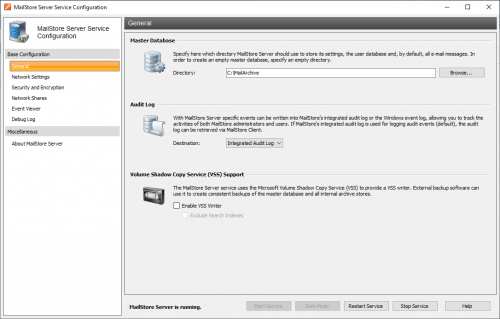
Main Database
Select the storage location of an existing main database. If you select an empty directory, a new main database will be created here. If you want to move an existing archive to a new storage location, see the instructions in the Moving the Archive section.
Control Log
Select the preferred location to store control log events.
- Windows Event Log - Control events are stored in the Windows Event Log, which allows third-party tools to access and monitor control events.
- Integrated Control Log - Control events are stored in the current archive, and MailStore administrators can use the MailStore Client to search within the control log.
Unit Shadow Copy Service (VSS) Support
Third-party backup solutions can use Windows' Unit Shadow Copy Service to create consistent data backups. For more information on various backup scenarios and why enabling VSS support in MailStore can be beneficial, please see Backup and Restore.
The following settings are available in this section:
- VSS Writer - Enables live backups of the archive using external backup software. The VSS Writer does not report the location of directory files.
Check Service
The current status of the MailStore Server service is displayed at the bottom of the window. You can use the buttons to check the MailStore Server service.
Safe Mode
The MailStore Server service can be started in Safe Mode to make configuration changes or perform maintenance tasks without background jobs or user intervention.
When Safe Mode is enabled:
- Only administrators can log in to MailStore
- Automatic archiving and export profiles are not started
- Jobs are not started automatically
- All internal heartbeats are disabled
- The MailStore Server Service Configuration cannot be closed
Network Settings
Certificate
This shows the currently valid TLS certificate used by all integrated services. Click on the name of the TLS certificate to view more details. You can use the three-dot button (...) next to the name to do the following:
- Select a TLS certificate from the certificate store of the MailStore Server computer.
- Transfer a TLS certificate directly from a file to the certificate store of the MailStore Server computer. The file must be in PKCS #12 format and usually has a .pfx or .p12 file extension.
- Request a TLS certificate from Let's Encrypt
- Automatically generate a new TLS certificate.
You can find more information about certificates and TLS security in the following articles:
- Using Your Own SSL Certificate
- Enhancing SSL Security
- Using Let's Encrypt Certificates
Services
In addition to enabling and disabling individual network services provided by MailStore Server, you can also select the IP address and port number that a service will connect to.
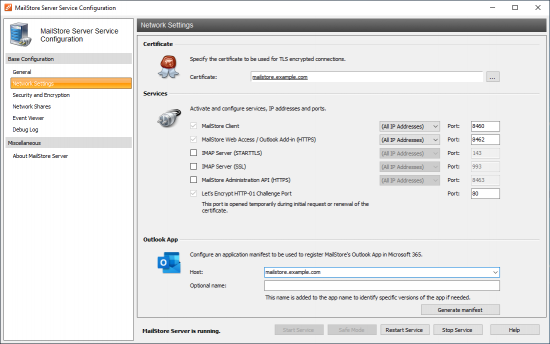
- MailStore Client Access (TLS Encrypted TCP Connection) - This service provides TLS encrypted archive access for the MailStore Client application. This service cannot be disabled because it is required to manage the MailStore Server. The default TCP port is 8460.
- MailStore Web Access / Outlook Add-in (HTTPS) - This service provides TLS encrypted archive access via MailStore Web Access and the MailStore Outlook Add-in. The default TCP port is 8462. This service cannot be disabled.
- IMAP Server (STARTTLS) - Enables STARTTLS encrypted archive access via the integrated IMAP server (open TLS). Login support over unencrypted connections is not supported.
- IMAP Server (SSL) - Provides TLS encrypted archive access via the integrated IMAP server (implicit TLS).
- MailStore Management API (HTTPS) - Provides TLS encrypted access to the MailStore Management API. The default TCP port is 8463. Since this API is used only to manage the MailStore Server, access to this port should be restricted to computers within your organization.
- Let's Encrypt HTTP-01 Challenge Port (HTTP-01 Challenge Port) - This port is temporarily used when requesting or renewing a certificate from Let's Encrypt.
IP Address
The IP address that the service accepts connections on. In general, it is recommended to connect MailStore Server services to all IP addresses (default).
Port
Shows the TCP port number that the service accepts connections on.
Note: If a web server other than MailStore Web Access is not loaded (e.g., an IIS web site, Microsoft Outlook Web Access or SharePoint), you can specify the standard HTTPS port (443). This way, users can directly access MailStore Web Access using URLs without port numbers. https://
Security and Encryption
This page provides various security features related to archive access and encryption. Please note that you cannot use these features while the MailStore Server service is running; it must be stopped first.
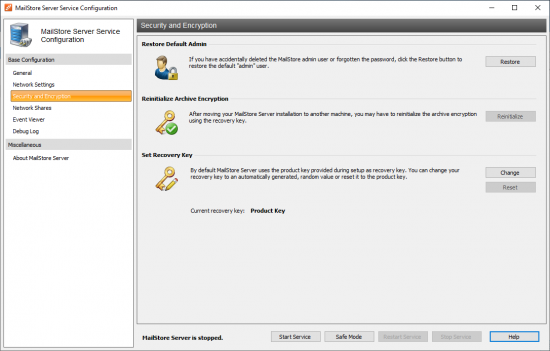
Restore Default Administrator
With this feature, you can restore the default administrator user with the same password as the administrator password. If Multi-Factor Authentication has been previously enabled, it will be disabled. The stored automatic login credentials will be removed. If the archive's recovery key you want to restore is not the product key of the current MailStore Server installation, you will be asked to enter the appropriate recovery key. The restoration of the default administrator user is logged in the control log.
Restart Archive Encryption
For security reasons, archive encryption is tied to the Windows installation of the MailStore Server machine. Therefore, you may need to restart the archive encryption when moving the archive to another computer. If the recovery key of the archive you want to restart encryption for is not the product key of the current MailStore Server installation, you will be asked to enter the appropriate recovery key.
Set Recovery Key
The recovery key is used to authorize various security-related tasks such as restoring the default administrator in MailStore Server, moving archives to another machine, or adding archive stores from another MailStore installation. This way, the number of people who can perform these tasks can be kept low, and administrative, archive, and system tasks can be separated.
By default, MailStore Server uses the product key provided during installation as the recovery key, and most security-related tasks are automatically performed without requiring you to enter a recovery key for authorization.
To enhance security, you can change your recovery key to a randomly generated value. In this case, all security-related tasks must be authorized with the recovery key. For easier reference, each recovery key has a unique identifier that is displayed when a recovery key needs to be provided. Only the latest recovery key can be used for authorization.
Changing the Recovery Key
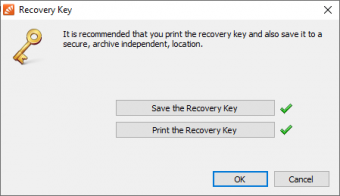 Click Change to replace the recovery key with a randomly generated value.
- You will be asked to save and/or print the recovery key. You must select at least one option to proceed.
- After successfully changing the recovery key, only the new key can be used from now on.
Important warning: Always store the recovery key in a secure location. Without the recovery key, it will no longer be possible to perform security-related tasks.
Resetting the Recovery Key
You can reset the recovery key to the current product key of your MailStore Server installation at any time. Before resetting, you will be asked to enter the current recovery key. By default, MailStore Server already uses the current product key as the recovery key, and the button is disabled.
Network Shares
The MailStore Server service can connect to network shares before starting and disconnect during shutdown. In the Using Network Attached Storage (NAS) section, more details on connecting to a network resource using special connection parameters are explained.
Event Viewer
Events such as starting or stopping the MailStore Server service are displayed here. If there is any error, click on the relevant entry to view additional details below the list.
Debug Log
On this page, you can enable, view, or delete all debug logs created by MailStore Server.
Enable Debug Log
Enable this feature if any problem or error occurs while running MailStore Server. After restarting the service using Restart Service (Restart Service) in the same window, a detailed log file is recorded. This file can be evaluated, for example, by the MailStore support team.
Enable IMAP Connection Debug Log
Enable this feature if any problem or error occurs while accessing MailStore Server using the integrated IMAP server. After restarting the service using Restart Service (Restart Service) in the same window, a detailed log file is recorded. This file can be evaluated, for example, by the MailStore support team.
The table shows a general overview of all debug log files. To view the contents of a debug log file in a text editor, double-click on the file name or click Open. To delete a debug log file, highlight the file name and click Delete.
Source: MailStore Server Service Configuration - MailStore Server Help