
Update Notifications to Version 25.1 or Newer for MailStore Server
With version 25.1, MailStore is no longer fully backward compatible with all previous versions for the first time. To become independent of the old Microsoft C++ runtime libraries, it was necessary to remove support for Firebird 3 and 2.5. Therefore, an update to version 25.1 requires all internal archive storages to have been previously updated to Firebird 4.


Database Systems in MailStore Server
Internal archive stores created with version 23.4 or earlier use Firebird 3 or Firebird 2.5 as the database system. Firebird 4 was introduced with MailStore 24.2. Since then, new archive stores have been automatically created with Firebird 4 databases. Old archive stores need to be updated manually.
You can find all other update notices for MailStore Server here.
About Databases in MailStore
MailStore Server uses Firebird Embedded as a database system to store the configuration and metadata of archived emails. The configuration is stored in a database called the main database, while email metadata is stored in archive store databases.
If a new Firebird version is supported in MailStore, the main database is automatically updated when the new version is started for the first time. This database can be updated without affecting the process within a reasonable timeframe.
Archive store databases are not automatically updated. Since this process can be long and thus affect the process, the administrator needs to start it manually.
To perform these database updates, MailStore must support both the old and new Firebird versions.
Firebird's C++ Dependencies
Firebird 4 has dependencies on Microsoft's 2015-2022 C++ runtime library. Firebird 3 has dependencies on Microsoft's C++ runtime library for 2013. Firebird 2.5 has dependencies on Microsoft's C++ runtime library for 2010.
All of these runtime libraries were automatically installed with MailStore Server up to version 24.4.
Microsoft has ended support for the C++ runtime libraries for versions 2013 and 2010.
Changes in MailStore Server 25.1
This MailStore version and all new versions can no longer load or update old databases.
When the service starts, the relevant error message is stored in the Windows event log.
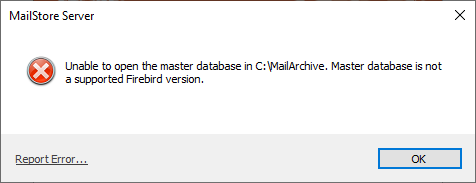
If a client tries to connect to a MailStore server that is attempting to load an incompatible database, the client displays the following error message:
When adding old archive stores, the following error message is displayed:
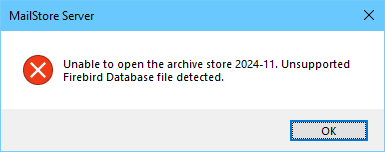
When loading already added old archive stores, the following error message is displayed:

What Should You Do Now?
Depending on the initial situation, different steps are required to be independent of Firebird 3 and 2.5.
Updating from 24.x Version
If you are currently using MailStore Server 24.2 to 24.4, you need to update the archive stores to Firebird 4 before upgrading to version 25.1 or newer. The control panel in MailStore Client and Storage Locations will inform you whether this step is required.


- Make sure that none of the archive stores are in the "Disabled" state. MailStore cannot determine whether these archive stores need to be updated.
- Right-click on disabled archive stores and change their status to "Write Protected."
- Disconnected archive stores are not listed in the archive store list. Therefore, add disconnected archive stores and set them to "Write Protected."
- If a hint indicating that an update is required appears, follow these steps:
- Create a backup.
- Read the MailStore Server Update Notices for version 24.2 (!) and follow the instructions. You can ignore known issues with this version.
- Update all archive stores.
- Create another backup.
- Download the current MailStore Server version [1].
- Read the update notices for the current version up to 24.2 and follow the instructions.
- Install the downloaded MailStore Server version.
Updating from Version 23.x and Older Versions
If you previously used MailStore Server version 23.4 or older, you need to perform an intermediate update before updating to the latest version.
Direct updates to the latest version are not possible.

- Create a data backup.
- Download MailStore Server 24.4 from here.
- Read the update notices for version 24.2 (!) and follow the instructions. You can ignore known issues with these versions since you are installing version 24.4, which already resolves those issues.
- Install MailStore Server version 24.4.
- Make sure that none of the archive stores are in the "Disabled" state. MailStore cannot determine whether these archive stores need to be updated.
- Right-click on disabled archive stores and change their status to "Write Protected."
- Disconnected archive stores are not listed in the archive store list. Therefore, add disconnected archive stores and set them to "Write Protected."
- Update all archive stores.
- Create another data backup.
- Download the latest MailStore Server version [2].
- Read the update notices for the current version up to 24.2 and follow the instructions.
- Install the downloaded MailStore Server version.
Updating Individual Archive Stores
If your archive stores are detached or disabled (https://help.mailstore.com/en/server/Storage_Locations#Detaching, https://help.mailstore.com/en/server/Storage_Locations#Setting_the_Status) and you don't need permanent access to their contents, the databases also need to be updated to Firebird 4 in order to be loadable by current MailStore Server versions.
If your MailStore Server installation is already on version 25.1 or newer, you cannot use this installation to update the archive store databases. You need a second system where you can perform the intermediate update.
- Provide another server.
- Create a backup of the archive store to be updated.
- Obtain a trial key to activate MailStore Server on this server. You will need this trial key again later, so keep it safe.
- Download MailStore Server 24.4 [3] and install it on the server.
- Add the archive store to this secondary system and update it. You will need either the product key or the rescue key from the main system to unlock it.
- Detach the archive store and transfer it to your main system.
- Connect the archive store to your main system and unlock it with the trial key you previously used. It can now be used as usual.
Restoring a Backup
Backups containing Firebird 3 or Firebird 2.5 databases cannot be read by MailStore 25.1 and newer versions.
If you want to restore such a backup, you need to load it once with MailStore Server 24.4 and update all archive store databases. The backup will then be compatible with the current MailStore version.
- Provide another server.
- Obtain a trial key to activate MailStore Server on this server. You will need this trial key again later, so keep it safe.
- Download MailStore Server 24.4 [4] and install it on the server.
- Restore the data backup to this server.
- Read the update notices for version 24.2 (!) and follow the instructions. Since you are installing version 24.4, which already resolves these issues, you can ignore the known issues with this version.
- Update all archive stores.
- Create another backup.
- The archive can now be moved to the primary server.
Source: https://help.mailstore.com/en/server/Update_Notices_for_MailStore_Server_to_version_25.1_or_newer