
MailStore Server Backup and Restore
MailStore Server is designed as a live system, and therefore, it must be protected against data loss caused by hardware or system failures with backups, just like other systems that permanently process or store data. Technical Tip: Creating Backups MailStore Server supports two methods to perform a full backup of the email archive, including all user settings: the integrated backup feature of MailStore Server and the use of external backup software.


Backup and Restore
MailStore Server is designed as a live system, and therefore, it should be protected against data loss caused by hardware or system failures with backups, just like other systems that process or preserve data permanently.
Technical Tip: Creating a Backup
MailStore Server supports two methods to perform a full backup of the email archive, including all user settings: the integrated backup feature of MailStore Server and the use of external backup software.
Which method is most suitable for your organization depends on your preferences and system environment.
Our technical tip video provides a general overview.
Backup
Preliminary Considerations
In smaller environments without an assigned administrator, comprehensive configuration is not required to ensure that the backup using the integrated backup feature is successfully completed and includes all relevant data and directories. However, to transfer the data (e.g., to offsite backup locations), it is necessary to integrate the backed-up data into another backup solution.
When using external backup software, several preparations are needed for a successful backup. On the positive side, MailStore Server data can be integrated into existing backup strategies without the need for a separate system backup.
What Data Should Be Backed Up?
To ensure that MailStore Server can be successfully and trouble-free restored at any time, the following data must be included in the backup:
- Main Database (MailStoreMaster.fdb), which contains all configuration settings such as profiles and users.
- Encryption key file for the main database (MailStoreMaster.key)
- Audit Log files, if the Audit Log target is set to "Integrated Audit Log" (directory): Audit Log
- Archive Stores
Each archive store in MailStore Server consists of three components:
- Folder information and metadata (MailStoreFileGroup.fdb + MailStoreFileGroup.key)
- Email headers and content (directory): Content
- Full-text index (directory): Index
Note: The configuration of the MailStore Server service itself (found in the program files folder of MailStore Server) contains information specific to the computer on which MailStore Server is installed, so it is not recommended to back up and restore service configuration data. Instead, after reinstalling MailStore Server on a new machine, manually reconfigure these settings. Pay special attention to the Audit Log Target and VSS Writer settings.
Notes on Consistency
Folder information and metadata and email headers and content are treated as a single unit requiring consistency, while the full-text index can be rebuilt if necessary. In environments with higher security requirements and depending on the backup target, it may be advisable to exclude unencrypted full-text indexes from the backup, as they would need to be completely rebuilt in case of a restore, which could be costly.
Notes on Integrity
Regardless of which backup method is used, only regular maintenance ensures that the backed-up data can be successfully used after a restore. For more details, please see Maintenance and Repair.
Using the Integrated Backup Feature of MailStore Server
MailStore has built-in technology to get a full backup of the archive.
The backup includes all emails archived and all settings such as profiles, users, and privileges. Restoring such a backup is sufficient to completely restore the original archive without having to perform any other configuration.
Important Note: When using the integrated backup feature, MailStore Server only supports internal archive stores. If you're using external archive stores, you'll need external backup software to perform a full backup.
Procedure
To create a full database backup, do the following:
- Log in to MailStore Server as an administrator in MailStore Client.
- Click on Jobs > Management Tools > Management API.
- Click on Storage and select Create Backup.
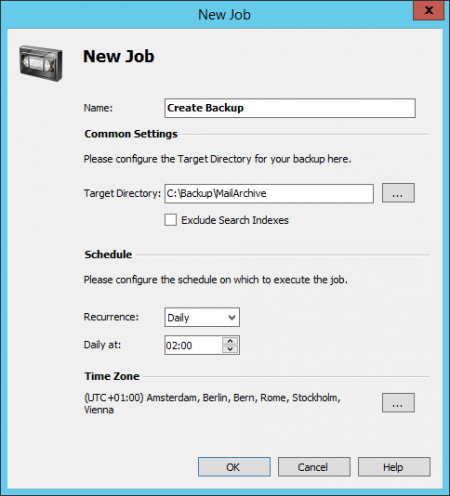
- Enter the target directory. Note: If the target directory is a network share, ensure that MailStore Server service has access to this share. The path should be entered in UNC notation, for example, \computer\share. For more information, see the article Using Network Attached Storage (NAS).
- Search directories can optionally be excluded. Note: This option can be configured so that administrators with access to backup files cannot access unencrypted search directory files. When restoring backups without search directories, the search directories need to be rebuilt.
- Define the start time of the backup in the Scheduling section.
- Click OK to complete the creation of the backup job.
If needed, manually run the job to verify that MailStore Server can create a flawless backup.
When running the backup function for the first time, all files are copied, and after that, only modified files are copied. To ensure backup rotation (e.g., daily, weekly), plan multiple backup jobs with different target directories.
Note: While the backup is in progress, the archive is inaccessible. Trying to access the archive will produce the following error message: The server is currently unavailable for maintenance.
Using External Backup Software
Backing Up Internal Archive Stores
When backing up internal archive stores with external backup software, attention should be paid to the consistency of the data, which depends on the backup method. The following sections summarize the pros and cons of different methods.
File-Based Backups
File-based backup solutions are good for backing up individual files but are generally not suitable for creating consistent backups of a MailStore Server, as data is spread across many files that change frequently.
To create consistent backups using file-based backup tools, it is necessary to pause and resume MailStore Server using the commands net pause mailstoreserver and net continue mailstoreserver, or stop and restart MailStore Server using the commands net stop mailstoreserver and net start mailstoreserver.
Because MailStore Server needs to be closed during the backup period, this usually causes downtime periods during which MailStore Server cannot archive new emails or provide end-user access to archived data.
Storage Snapshots
When using Unit Shadow Copy Service (VSS) or other methods for creating storage-level snapshots, it is necessary to ensure that all files are closed before the snapshot is created.
MailStore Server provides external backup software with the Unit Shadow Copy Service Writer (VSS Writer), which is a Microsoft Unit Shadow Copy Service. External backup software can be used to create consistent backups of the MailStore Server main database and all internal archive stores. However, the success of this method largely depends on the backup software and storage used. The VSS Writer should be enabled in MailStore Server Service Configuration.
To verify that the appropriate VSS events are triggered during the backup, open the application log in Windows Event Viewer and look for the following events:
- A backup session was started.
- The archive was frozen in response to the OnPrepareSnapshot event.
- The archive was thawed in response to the OnThaw event.
- The backup session was closed.
If these events are not found in the application log, a consistent backup has not been performed using the Unit Shadow Copy Service. In this case, the backup software must prepare MailStore Server for snapshots. This can be done using the methods described in detail in the File-Based Backups section.
For information on how to execute the commands before and after snapshots, please refer to the documentation of your backup software.
Full Virtual Machine Snapshots
Some backup solutions are highly integrated with virtualization solutions and can create full snapshots of virtual machines, back up/replicate them. These types of snapshots include not only the current state of the hard disks but also the state of the current memory. Therefore, full virtual machine snapshots can be considered consistent.
Other Backup or Replication Methods
For questions regarding other backup solutions such as block-level replication, continuous backup, etc., please contact the vendor's support to learn whether their software can create consistent backups of all directory structures.
Backing Up External Archive Stores
External archive stores allow you to store folder information and metadata in an SQL database. Email headers and content can optionally be stored in an SQL database as well. Search index files must be stored in the file system.
To back up external archive stores, the distributed data must be backed up at the same time. Stop MailStore Server service, back up the SQL databases and files stored in the file system using appropriate backup tools, and then restart MailStore Server service when done.
You can stop and start the MailStore Server service by running the net stop mailstoreserver and net start mailstoreserver commands.
If unencrypted search index files are not backed up, you can rebuild them after restoring the backup.
Restoring Backups
This section explains how to restore a database backup created using the integrated backup feature to restore the entire email archive.
Background
A database backup created using the integrated backup feature and containing search index files includes all archived emails and program settings such as users and privileges. Restoring such a backup is sufficient to completely restore the original archive without having to perform any other configuration.
Automatic Restoration of Database Backup
When creating a backup, MailStore Server creates two files on the backup target, allowing the archive to be automatically restored in its original storage location. If the backup needs to be restored to a different storage location or only parts (i.e., a single archive store) need to be restored, the restoration procedure must be performed manually (see the next section).
To restore a database backup, MailStore Server must be installed and running. Please proceed as follows:
- Stop the MailStore Server service and delete the empty archive created during installation: C:\MailArchive.
- Reconfigure the service settings (e.g., Certificates, Audit Log Target, VSS Support).
- Then, run the
restore.batfile from the backup directory. Note: If the file is located in a network share, for example, \nas01\MailStoreBackup, you first need to map this share to a drive letter (e.g., N:) and then run the file on this drive. - Follow the on-screen instructions. Carefully check the output for possible error messages.
- Run the MailStore Server Service Configuration tool from the MailStore Server program folder in the Windows Start menu.
- Under General > Main Database, click Browse... and select the backup directory containing the
MailStoreMaster.fdbfile. Click OK to confirm your selection. - Finally, restart the MailStore Server service.
If the backup includes search index files, no additional steps are needed after using automatic restoration. Otherwise, the search indexes need to be rebuilt.
Manual Restoration of Database Backup
To restore a database backup, MailStore Server must be installed and running. Please proceed as follows:
- Copy the database backup to a local fixed drive on your computer or an appropriate network share.
- Start the MailStore Server Service Configuration. It can be found in the MailStore Server program folder accessible from the Windows Start menu.
- Under Main Database, click Browse... and select the backup directory containing the
MailStoreMaster.fdbfile.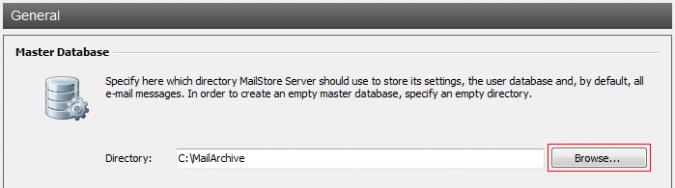
- Click OK to confirm your selection.
- Click Restart Service to save the new settings.
- When creating the backup, the folder names of the archive stores may have changed. To configure the paths to the archive stores or rename the folders appropriately in the file system, please use Storage Location Management. The original folder names of the archive stores in the backup can be found in the
restore.csvfile created with the backup.
If the backup includes search index files, no further steps are needed after the restore. Otherwise, the search indexes need to be rebuilt.