
Automatic Email Archiving
In our Technical Tips blog series, we aim to illuminate various topics related to MailStore Server for our stakeholders, customers, and partners. In this Technical Tip, we will show you the options you can use to automate the archiving process and how to set them up.


Archiving Simplified
By making a few settings, you can configure MailStore to automatically archive emails in the background without any interaction from a user or administrator. The available automatic archiving type depends on the archiving strategy you select. If you want to learn more about current strategies, take a look at this Technical Tip.
How to Set Up Automatic Archiving?
In MailStore Server, you can right-click on any existing archiving profile and set it to automatic. This profile will then permanently monitor for new emails at, for example, every 300 seconds. Additionally, you can define periods when archiving profiles should not be executed. If you want to archive multiple open mailboxes, i.e., you want emails to be archived as soon as they are received or sent, we recommend this archiving method.
In addition to multiple open mailboxes, do you want to automatically archive all your users' mailboxes, including the relevant folder structures (known as mailbox archiving)? If so, keep in mind that using the above method to automate mailbox archiving may impose a heavy load on the CPU resources of the MailStore Server machine, especially if several users want to access the archive at the same time.
Therefore, we recommend that you use jobs for automated mailbox archiving.
Mailbox Archiving Using Jobs
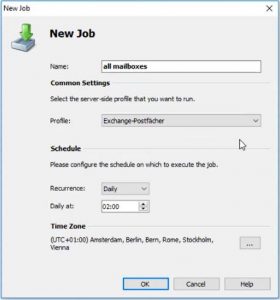
Configuring Archiving Jobs on MailStore Server
In the "Administrative Tools" section of MailStore Server, administrator users can create scheduled jobs configured to run at a specific time of day. With the help of these jobs, archiving can be configured to run, for example, at night, when the resources of the MailStore Server machine are consumed less. This also allows you to automatically run several archiving profiles at different times of the day, if needed, without consuming resources or affecting system performance.
Open the Management API folder and go to Jobs. Now select Profiles from the top three boxes, and then select Archive Email. Here, you can define a name for your new job and then select the archiving profile you want to use. Under Scheduling, you can define the interval (frequency) and time of day when the job should be executed.
Important: If you have a stack of individual jobs to run, we recommend that you stagger the execution to spread the load across the system. However, please make sure that you have previously set your archiving profiles to manual under Email Archive.
Finally, on the right side of the screen, you will see a summary of the jobs you have configured. The jobs will then be automatically executed in the background at the defined time, or you can choose to trigger them manually. Although a normal "progress bar" does not appear in the bottom right corner of the screen, you can be sure that the archiving will run completely in the background. You can also check whether the job was successfully completed under Last Execution or via the status report.
Source: Technical Tips: Automated Archiving with MailStore Server