
Sync User Accounts with Microsoft 365 - Modern Authentication
As described in the User Management section, besides adding users, you can synchronize the internal user database of MailStore Server with your organization's Microsoft 365 tenant. During synchronization, user information such as user names and email addresses is copied from the Microsoft 365 tenant to MailStore Server's user database. This way, users can log in to MailStore Server using their Microsoft 365 credentials, and for example, emails can be automatically assigned to the relevant user archives. No changes are made to the Microsoft 365 tenant by MailStore Server. The scope of synchronization can be limited with filters.


Prerequisites, Recommendations and Limitations
- For the best user experience, the certificate used by MailStore Server must be trusted by all clients and web browsers used. It is strongly recommended to use a certificate signed by a trusted certificate authority or to use Let's Encrypt certificates.
- If you have archived emails from an Exchange server and synchronized users from Active Directory, follow the article 'Migrating Archiving from Microsoft Exchange Server to Microsoft 365'.
- If users need to log in to MailStore Server from outside your organization's network using the MailStore Client, MailStore Outlook Add-in, or Web Access without a VPN, the URIs mentioned in this article must be resolvable via DNS, and port forwarding to the MailStore Server computer may need to be configured on the firewall or router.
- When authenticating users with Microsoft 365, it is not possible to access the archive via IMAP due to technical reasons.
- MailStore Server supports synchronizing user accounts with Microsoft 365 and Office 365 operated by 21Vianet. Other environments such as GCC, GCC High, or DoD are not supported. In the following article, for simplicity, only the term Microsoft 365 is used.
Connecting MailStore Server to Microsoft 365
To synchronize user information from Microsoft 365, MailStore Server must be connected to your Microsoft 365 tenant and the necessary permissions must be granted. Microsoft 365 is based on Microsoft Entra ID as a directory service. Every Microsoft 365 tenant corresponds to a Microsoft Entra ID tenant that stores user information.
Registering MailStore Server as an Application in Microsoft Entra ID
By registering, MailStore Server gains an identity in Microsoft Entra ID, enabling it to authenticate and use the tenant's services and resources.
- Log in to Microsoft Entra ID Portal as a Global Administrator for your Microsoft 365 tenant. The Microsoft Entra ID Portal for Office 365 operated by 21Vianet can be accessed from here.
- In the navigation menu (☰), select Microsoft Entra ID.
- On the next page, from the left navigation menu, select Application registrations under the Manage section.
- Select New registration. The Register application page appears.
- Enter a meaningful display name in the Name field, for example, MailStore Server. This name will be shown to users during login.
- Leave all other settings on this page as default.
- Click Register. If the registration is successful, the overview page of the newly registered application is displayed.
- The Application (client) ID shown on this page identifies MailStore Server in your Microsoft Entra ID tenant. Together with the Directory (tenant) ID, this must be copied to MailStore Server. Therefore, keep the overview page of your web browser open for the following steps.
Creating Credentials on MailStore Server
The credentials for Microsoft 365 consist of the identities mentioned above and a secret used by MailStore Server to prove its identity to Microsoft Entra ID. Microsoft recommends using certificates as secrets for identifying applications in Microsoft Entra ID. When creating credentials, a certificate is automatically generated by MailStore Server, but it can be recreated later.
- Log in to MailStore Server using the MailStore Client as an administrator.
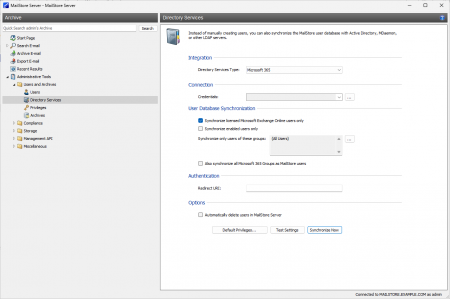
- Click on Administrator Tools > Users and Archives > Directory Services.
- In the Integration section, change the directory service type to Microsoft 365 or Microsoft 365 operated by 21 Vianet.
-
In the Connection section, click on the (...) button next to the Credentials drop-down list.
-
In the appearing Credential Manager, click Create...
-
In the Microsoft Entra ID Application Credentials dialog, enter the following information in the Settings section: Name - A meaningful display name for the credentials, for example, the name of your Microsoft 365 tenant.
-
Application (client) ID: The value of the relevant field that can be copied from the Microsoft Entra ID application overview page in your web browser.
-
Directory (tenant) ID: The value of the relevant field that can be copied from the Microsoft Entra ID application overview page in your web browser.
-
In the Authentication section, click on the drop-down menu next to the Certificate text box and select Download Certificate. Save the certificate to your hard drive.
-
Click OK to confirm your entries.
-
The newly created credentials are listed under the name you entered in the Credential Manager with the type Microsoft 365. Here, you can edit or delete existing credentials if needed.
-
Click Close in the Credential Manager to exit.
-
The newly created credentials are selected by default in the relevant drop-down list.
Publishing Authentication in Microsoft Entra ID
To enable Microsoft Entra ID to verify MailStore Server's identity, the created certificate must be published in Microsoft Entra ID.
- Go to the overview page of the Microsoft Entra ID application in your web browser.
- In the left navigation menu, under the Manage section, select Certificates & secrets.
- Click Upload certificate in the Certificates section. Select the certificate file you previously saved and click Add to upload it to Microsoft Entra ID.
- If the upload is successful, the fingerprint and start/end dates of the certificate appear in the certificate list. To verify that you uploaded the correct certificate, compare its fingerprint and end date with those listed in the MailStore Credential Manager.
Configuring App Authentication in Microsoft Entra ID
For Microsoft Entra ID to return a user's authentication result to MailStore Server, the endpoint where MailStore Server expects authentication responses, namely the Redirect URI, must be sent to Microsoft Entra ID.
-
In the Microsoft Entra ID Portal in your web browser, select Identity Authentication from the left navigation menu under the Manage section.
-
Click Add Redirect URI on the Redirect URI configuration page.
-
In the Platform selection page, under Web applications, select Web.
-
Enter a URI format (without parentheses) in the Redirect URI field: https://[:]/oidc/signin. This includes the following components:
- https://: The protocol must be specified.
- FQDN: The Fully Qualified Domain Name (FQDN) of your MailStore Server, consisting of the machine name and DNS domain name. For example, mailstore.example.com. This name must be resolvable by all clients that can access MailStore Server.
- Port: The TCP port of MailStore Web Access (default is 8462). This value must match the port configured in the MailStore Server Configuration under Basic Settings > Network Settings > MailStore Web Access / Outlook Add-in (HTTPS). The port should only be specified if it differs from the default port of the HTTPS protocol (443).
- /oidc/signin: The endpoint where MailStore Server expects authentication responses from Microsoft Entra ID. This path must be specified exactly as shown at the end of the redirect URI.
-
Click Configure to add your Redirect URI.
-
In the Authentication section, go to the Settings panel. Then, perform the following action in the Implicit grant and hybrid flows section:
- Enable ID tokens.
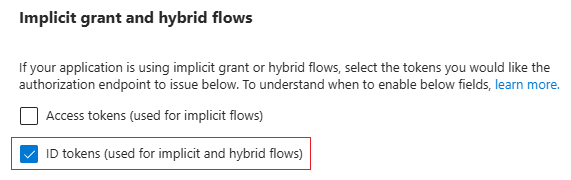
- Ensure that the ID tokens option is set in the Implicit grant and hybrid flows section.
- Click Save to complete the application authentication configuration in Microsoft Entra ID.
Examples of Valid Redirect URIs
| Product | FQDN | Port | Resulting Redirect URI |
|---|---|---|---|
| MailStore Server | mailstore.example.com | 8462 | https://mailstore.example.com:8462/oidc/signin |
| MailStore Server | mailstore.example.com | 443 | https://mailstore.example.com/oidc/signin |
| MailStore SPE | archive.example.com | 443 | https://archive.example.com/oidc/signin |
Note: The Redirect URI is case-sensitive. Also, review the requirements for resolving URIs in the Prerequisites, Recommendations and Limitations section.
Important Notice: Do not forget that the Redirect URI is case-sensitive. Also, review the requirements for resolving URIs in the Prerequisites, Recommendations and Limitations section.
Important Notice: Do not forget that the ID Token option must be set for user authentication to work.
Configuring Redirect URI on MailStore Server
To enable MailStore Server to send the Redirect URI to clients requesting it, it must also be configured there.
- Go to the Directory Services page in MailStore Client.
- Enter the Redirect URI in the relevant field under Authentication. Simply copy the value previously configured in Microsoft Entra ID via your web browser.

Configuring API Permissions in Microsoft Entra ID
- Go back to Microsoft Entra ID in your web browser.
- From the left navigation menu, under the Manage section, select API permissions.
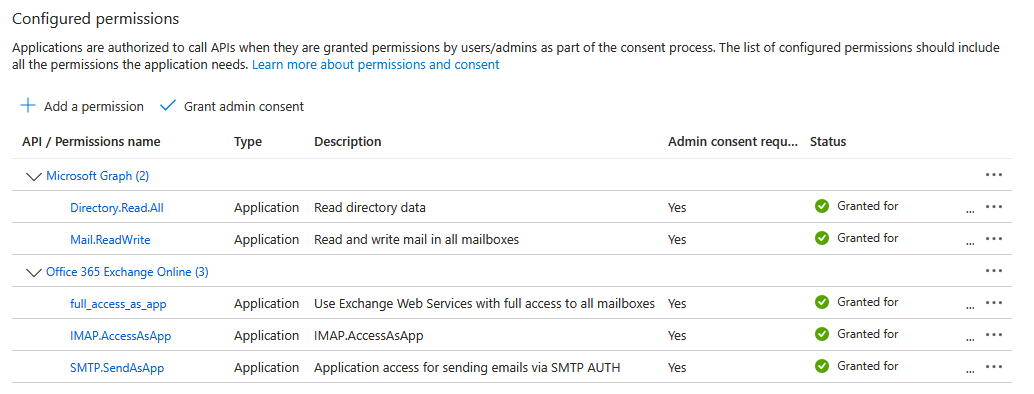
- In the Configured permissions section, click Add a permission.
- On the Request API permissions page, select Microsoft Graph from the Commonly used Microsoft APIs section.
- Select Application permissions.
- In the Select permissions section, enable Directory > Directory.Read.All permission.
- In version 26.1, also enable the Mail > Mail.ReadWrite permission in the Select permissions section.
- Click Add permissions.
- The permissions are updated, and Directory.Read.All and Mail.ReadWrite permissions appear in the API permissions list under Microsoft Graph.
- In the Configured permissions section, click Add a permission again.
- On the Request API permissions page, select My organization's APIs.
- Search for Office 365 Exchange Online and click the relevant entry.
- Select Application permissions.
- In the Select permissions section, enable full_access_as_app permission.
- In version 25.3, also enable SMTP permission. In the SMTP section, select SendAsApp.
- In version 26.2, also enable IMAP permission. In the IMAP section, select AccessAsApp.
- Click Add permissions.
- The permissions are updated, and full_access_as_app, SMTP. SendAsApp, and IMAP. AccessAsApp permissions appear in the API permissions list under Exchange.
- Now click the Grant admin consent button in the Configured permissions section.
- Confirm the following message with Yes.
- The status of all granted permissions is updated to Approved.
The configuration of MailStore Server's connection to Microsoft 365 within Microsoft Entra ID is now complete. You can log out of your Microsoft Entra ID tenant and close the browser window. Return to the Directory Services page in MailStore Client, where all remaining configuration steps should be performed.
User Database Synchronization
After configuring the connection settings as described above, you can specify filter criteria for Microsoft 365 synchronization in this section.
- Synchronize only licensed Microsoft Exchange Online users: Only Microsoft 365 user accounts that have been assigned a Microsoft Exchange Online license will be considered during synchronization.
- Synchronize active Microsoft 365 users: Only Microsoft 365 user accounts that are not blocked from Microsoft 365 login will be considered during synchronization.
- Synchronize only these groups: If you want to ensure that only MailStore Server users are created from members of one or more Microsoft 365 security groups, select those groups. This allows you to prevent certain users from being synchronized with MailStore Server.
- Also synchronize all Microsoft 365 Groups as MailStore users: All Microsoft 365 groups will be synchronized as MailStore users with configured email addresses. Since direct access to Microsoft 365 Group mailboxes is not possible, they should be excluded when archiving multiple Microsoft 365 mailboxes centrally. When archiving incoming and outgoing emails directly, emails sent from and to these groups will be archived. However, these users cannot log in to the MailStore archive.
Options
- Delete users from MailStore Server: Here, you can choose whether users deleted in the Microsoft 365 tenant will also be deleted from the MailStore Server user database during synchronization. Users outside the scope of configured settings will also be deleted. Only users with the Directory Services authentication method set as their identity method in MailStore Server will be deleted. If such a user's archive folder already contains archived emails, only the user entry will be deleted from MailStore Server, but the archive folder itself will not be deleted.
Assigning Default Privileges
By default, users synchronized from Microsoft 365 to MailStore Server have access to log in to MailStore Server and have read access to their user archives. You can configure these default privileges before synchronization; for example, assigning the Archive Email privilege to all new users. To do this, click on Default Privileges.... For more information about managing user privileges and their effects, refer to the section Users, Folders and Settings, which contains detailed information on editing existing privileges.
Running Directory Services Synchronization
To check the synchronization configuration and results from your Microsoft 365 tenant, click on Test Settings. Finally, to run the synchronization, click Synchronize Now. The results will be displayed along with any changes made to the MailStore Server user database.
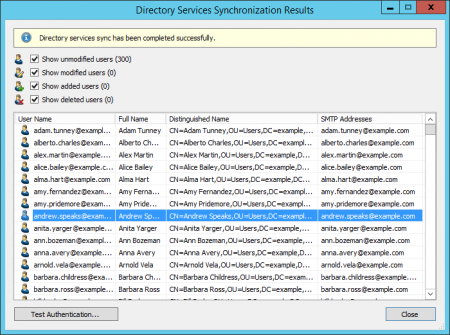
You can test the authentication of a user by first selecting them from the list and clicking the button in the bottom left corner. The user's password will then be requested from you. When you click OK, it will inform you whether the authentication was successful.
Updating Credentials
The certificate created by MailStore for logging in to Microsoft Entra ID is valid for 3750 days (25.3 version and earlier versions are valid for 825 days). To ensure that the user synchronization and archiving can continue to function, the certificate must be updated before its validity expires.
MailStore Server will show a notification in the MailStore Client panel and in the status report 28 days before the credentials expire. You can also retrieve the expiration date using the GetCredentials API command.
To update the credentials, follow these steps:
Updating Credentials on MailStore Server
- Log in to MailStore Server as an administrator using the MailStore Client.
- Click on Administrator Tools > Users and Archives > Directory Services.
- Ensure that the directory service type is set to Microsoft 365 (Modern Authentication) or Microsoft 365 operated by 21 Vianet.
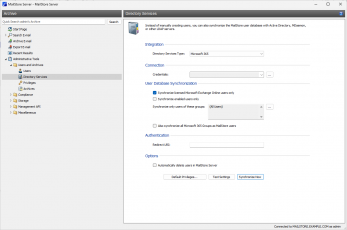
- In the Connection section, click on the (...) button next to the Credentials drop-down list.
- In the appearing Credential Manager, click on the currently used credential object and select Edit...
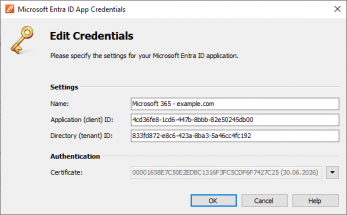
- In the Authentication section, click on the drop-down menu next to the Certificate text box and select Create Certificate.
- Confirm the process.
- In the Authentication section, click on the drop-down menu next to the Certificate text box and select Download Certificate. Save the certificate to your hard drive.
- Click OK to confirm your changes.
- Click Back to exit the Credential Manager.
- The newly created credentials are selected by default in the relevant drop-down list.
- If you are using Microsoft 365 in hybrid mode and synchronizing users from your Active Directory, set the directory service back to Active Directory.