
MailStore Server - Multi-Factor Authentication
To increase security during the login process, Multi-Factor Authentication (MFA - Multi-factor Authentication) can be enabled for users with integrated authentication to MailStore. MailStore supports Time-Based One-Time Password (TOTP) according to RFC 6238.


To enable Multi-Factor Authentication (MFA), users need a TOTP-enabled device, such as a smartphone with an authentication app installed.
Important warning: For valid one-time passwords (TOTP) to be generated, the system time of the MailStore Server and the end devices must be synchronized.
Configuration
Administrators can configure MFA within User Management.
Log in to MailStore as an administrator via the MailStore Client. Click on Users and Archives > Administrative Tools, then click on Users.
Enable
- Open the properties of the user for whom you want to enable MFA.
- From the Authentication drop-down menu, select MFA integrated MailStore login.
- Confirm with OK.
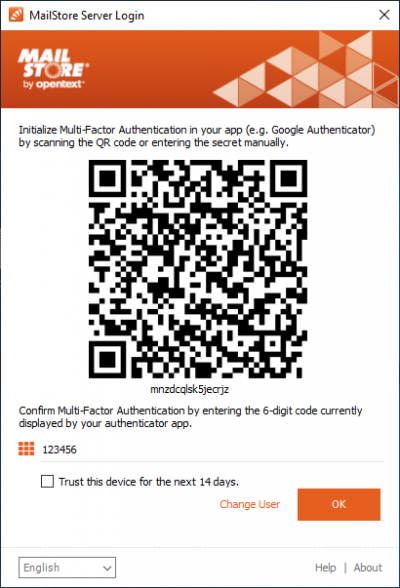
- At the user's next login with an MFA-enabled client (MailStore Client, MailStore Outlook Add-in, Web Access), the user is prompted to scan a QR code with a TOTP-enabled authentication app (e.g., Google Authenticator) and then enter an MFA code to complete the MFA setup.

Disable
- Open the properties of the user for whom you want to disable MFA.
- From the Authentication drop-down menu, select Integrated with MailStore.
- Confirm with OK.
- Existing application passwords remain in place and stay valid.

Restart MFA
If a user has lost the device on which MFA was set up, wants to set up MFA on a different device, or for any other reason needs to reset MFA, you can restart MFA. This creates a new private sequence used for deriving one-time passwords. The user is again prompted to complete the MFA setup at their next login. This feature cannot be used if the user has not yet completed the MFA setup with their device.
- Open the properties of the user for whom you want to restart MFA.
- Click on the Commands button.
- Click on Restart MFA.
- Confirm the action.

Delete Application Passwords
If a user has created application passwords to continue using MFA non-enabled clients (Scheduled Tasks, IMAP, Management API), you can delete them here. This feature cannot be used if the user has not created any application passwords. Application passwords can only be fully deleted.
- Open the properties of the user from whom you want to delete application passwords.
- Click on the Commands button.
- Click on Remove Application Passwords.
- Confirm the action.
Login
If MFA is enabled for a user, during their next login with an MFA-enabled client (MailStore Client, MailStore Outlook Add-in, Web Access), the user is prompted to scan a QR code with a TOTP-enabled authentication app (e.g., Google Authenticator). This stores the previously created private sequence in the app and allows it to generate valid one-time passwords. The sequence appears under the QR code and can be copied to the clipboard by double-clicking to save it in a password manager.
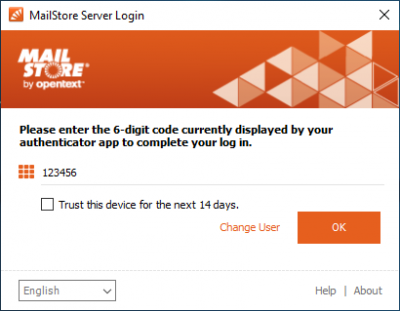
If the QR code has been scanned and a valid MFA code has been entered, subsequent login attempts will only request the MFA code.
Trusted Devices
If the device used for login is trusted, the Trust this device for 14 days option can be set. When this option is set, an additional token is stored on the endpoint device during the login process.
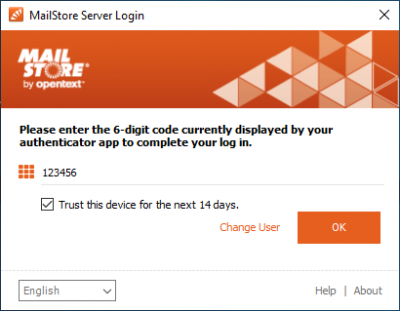
The MailStore Client, Outlook Add-in, and Web Access each store their own token. The token for the MailStore Client and Outlook Add-in is stored in the Windows credential manager and does not transfer with roaming profiles. The Web Access token is stored in the browser's Local Storage Area. If Web Access is accessed via the browser's Incognito Mode, the token does not persist across browser sessions.
Management of Application Passwords
After MFA has been enabled for a user, the normal password can no longer be used to log in to MFA non-enabled clients. MFA non-enabled clients include:
- Scheduled Tasks using the MailStore Client in command line mode
- IMAP clients
- Management API clients such as Powershell API Wrapper and Python API Wrapper
To ensure these clients can still be used, users can create application passwords. These passwords are generated by MailStore and characterized by increased complexity.
Application passwords can only be managed via the MailStore Client by users with integrated MFA authentication. In addition, the Change Password right is required. Application passwords work even if MFA is disabled. Application passwords can never be used to log in with MFA-enabled clients.
- Log in to the MailStore Client.
- From the Home Page, click Manage Passwords.
- The context names of previously created application passwords are listed.
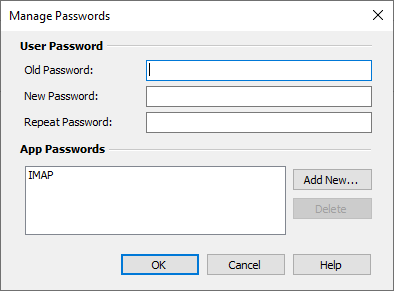
- To add a new application password, click Add.
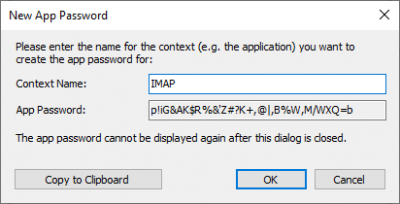
- Application password context names must be unique and cannot contain the application password itself.
- Highlight a name and click Delete to remove an application password.