
Archiving IMAP and POP3 Multidrop Mailboxes
In this section, learn how to archive multidrop mailboxes. Also known as catchall mailboxes, multidrop mailboxes contain emails for multiple people. Generally, all emails belonging to a specific domain are collected here to be received by an internal email server; the server then distributes the emails among the appropriate user mailboxes. Multidrop mailboxes are also used to send a copy of all emails to a single mailbox on the email server; MailStore extracts sender and recipient information from email headers to assign emails to the appropriate users. It is possible to archive all incoming and outgoing emails using this type of mailbox.


Archiving IMAP and POP3 Multidrop Mailboxes
In this section, you will learn how to archive multidrop mailboxes. Also called catchall mailboxes, multidrop mailboxes contain emails for multiple people. In general, all emails belonging to a specific domain are collected here for internal email servers to receive; the server then distributes the emails among appropriate user mailboxes. Multidrop mailboxes are also used when all emails are sent to a single mailbox on the email server; MailStore extracts sender and recipient information from the email headers to assign emails to the appropriate users. Using this type of mailbox, you can archive all incoming and outgoing emails.
Important: This article describes a general procedure that is independent of the email server used. Please find specific information for your email server in our Implementation Guides.
Setting Up the Archiving Process
The procedure described here can be followed to archive an IMAP or POP3 multidrop mailbox. The archiving process can be executed manually or automatically.
Setting up archiving operations for multidrop mailboxes is done using archiving profiles. General information about archiving profiles is available in the section Working with Archiving Profiles.
Please proceed as follows:
- Log in to MailStore as an administrator using the MailStore Client.
- Click on Archive Email in MailStore.
- To create a new archiving profile, select Other Server via IMAP/POP3 from the list of Email Server in the Profile Create application window area.
- A wizard opens to guide you through the setup process.
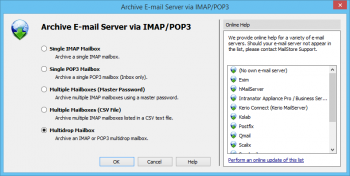
- Select Multidrop Mailbox and click OK. Please note: In order to archive a multidrop mailbox, MailStore Server users must be present in the MailStore Server user management along with their email addresses. If this is not the case, MailStore Server will offer to set up and run directory synchronization at this point. Once completed, the wizard will continue. Alternatively, you can cancel the wizard and manually create users as described in the section User Management.
- Fill in the fields Access via, Host, Username, and Password. Click Test to verify the entered data. Only for TLS and SSL protocols: If the certificate provided by the remote host cannot be verified (e.g., self-signed or signed by an unknown certificate authority), enable the option Accept All Certificates to allow MailStore to connect. This option may result in an insecure configuration, and warnings may appear in the summary and/or control panel.
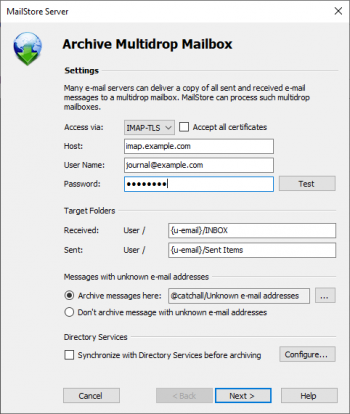
- Make other settings such as how emails with unknown addresses should be handled.
- Placeholders like {u-email} or {h-email} can be used under Target Folders. {u-email} represents a user's primary email address, and {h-email} is the email address found in the email header. If a user has multiple aliases, using {h-email} during processing will cause emails sent to different aliases of the user to be archived into separate folders, whereas {u-email} will file all emails under the primary email address of the user. Warning: If you are archiving messages from users' mailboxes in addition to the archive, you must set the target folder names here to match the folder names created by the user mailbox archiving profiles. Otherwise, additional or similar folders may be created in users' archives. Folder names are case-sensitive.
- If the option Synchronize with Directory Services before Archiving is enabled, the MailStore user list will be synchronized with the configured directory service before the archiving process actually runs. The advantage of this is, for example, that new employees can be created as MailStore users before archiving, allowing MailStore to sort emails into the correct archives.
- Click Next.
- You can specify Deletion Rules to determine when emails should be deleted from the multidrop mailbox after archiving. This makes it possible to align the deletion process with your MailStore Server backup strategy. For example, in a daily backup scenario, the deletion can be delayed for a day.
- The timeout value should only be set according to the situation (e.g., with very slow servers).
- Click Next.
- In the final step, choose a name for your new archiving profile. After clicking Finish, the archiving profile will be listed under Saved Profiles and can be run immediately or automatically if desired.
Starting the Archiving Process
Manually Starting the Archiving Process
On the start page of the MailStore Client, click Archive Email and select the appropriate archiving profile from the list under Saved Profiles. Click Run. After the archiving process is executed, a protocol appears that contains information about the volume of archived emails and any potential errors.
This process can be repeated by the user as many times as needed. MailStore only archives emails that have not yet been stored in the relevant user archive.
Automating the Archiving Process
In addition to manually executing archiving tasks, they can also be executed automatically. Additional information about this topic is available in the section Automating the Archiving Process.
Source: https://help.mailstore.com/en/server/Archiving_IMAP_and_POP3_Multidrop_Mailboxes