
Accessing Archives with MailStore Client Software
As an alternative to manually installing the MailStore Client application, you can also distribute it to client computers via the Active Directories Group Policy feature.


Installation and Update
The MailStore Client installation file that matches your MailStore Server version is stored on the MailStore Server machine. Follow the Install MailStore Client on Other Computers link on your desktop and copy the relevant installation file to the client computer.
Double-clicking the installation file is a normal Windows installation program that can be executed on the appropriate client computer. Simply follow the instructions on the screen.
If an update is loaded onto the MailStore Server computer, the MailStore Client automatically updates itself during the first login to remain compatible with the MailStore Server. Therefore, it is generally not necessary to reinstall the MailStore Client.
Starting and Logging In
Use the appropriate link on your desktop to start the MailStore Client.
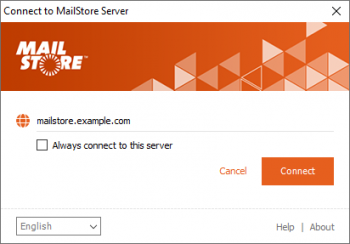
The Connect to MailStore Server window opens.
- Enter the DNS host name of the computer where the MailStore Server is installed in the Server Name field. Remember that the pre-filled localhost entry only works if the MailStore Client is run on the machine where the MailStore Server is installed.
- Click Connect to connect to the MailStore Server.
Tip: If you have selected the Always connect to this server option and want to change the target server later, hold down the Shift key when starting the MailStore Client.
After connecting to the MailStore Server, the MailStore Client checks whether a newer version of its program files can be downloaded and automatically updates them if necessary.
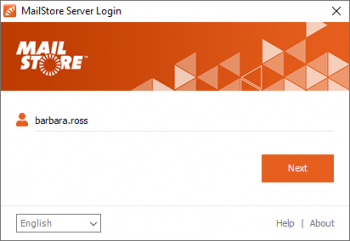
After a successful connection, the user name dialog box appears.
- Enter the user name of a MailStore user in the User Name field and click Next.
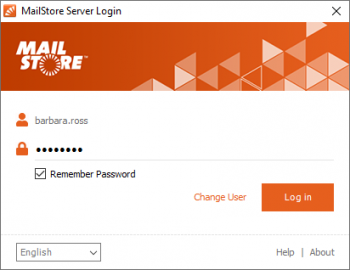
The MailStore Server now determines how to verify the user's identity.
-
If the MailStore Server can verify the user's credentials itself, a password dialog box appears as shown on the right. Enter the password in the Password field and click Log In.
-
If the user authenticates via Microsoft 365, Google Workspace, or Active Directory Federation Services (AD FS), the default web browser opens to allow authentication via Microsoft's, Google's, or AD FS's identity service.
-
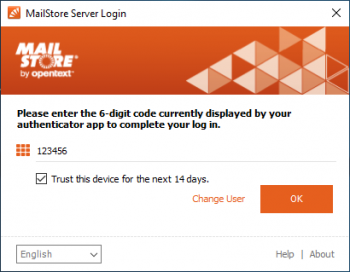 If Multi-Factor Authentication (MFA) is enabled and the current device is not trusted, the user must enter an MFA code.
MailStore Folder Structure
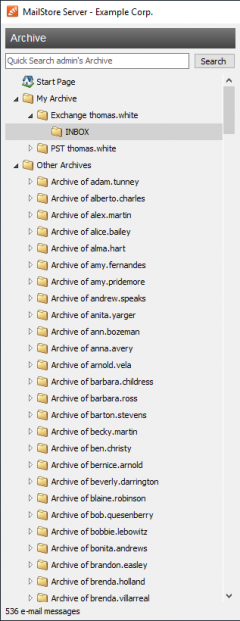
For each user, MailStore creates a folder at the top level of the folder structure that corresponds to the user's archive. This folder contains all emails archived for this user and is labeled My Archive.
If a user has access to other MailStore users' archives (e.g., as a MailStore administrator), these folders are listed as Archive.
Under these main folders, individual email sources (e.g., Microsoft Outlook or Exchange mailboxes) and their folder structures (e.g., Inbox) are listed.
Note: For MailStore administrators, access to other users' archives via the folder structure is disabled by default; this setting can be changed in Compliance Settings. In addition, MailStore administrators can manage archives via the Archives page.
Deleting Folders
Folders and the emails within them can only be deleted after the appropriate user privileges have been explicitly assigned by an administrator. If there are any subfolders in the folder to be deleted, they will also be deleted.
Manually Moving, Renaming, and Creating Folders
Folders can be moved, renamed, or created within MailStore. Normal users can do this only within their own user archive, while MailStore administrators can move and rename folders beyond the boundaries of user archives. During archiving, MailStore adopts the folder structure and folder names (e.g., Microsoft Outlook) from the source.
Please note that since the destination user's full-text index must collect the moved emails, moving large archives across the boundaries of user archives may take some time.
The New Folder..., Rename, and Move to Folder... options can be accessed by right-clicking the relevant archive folder.
If a MailStore administrator renames a user archive (Folder: Archive) without renaming the associated user, the renamed archive will be empty until it is changed again.
Tip: Using an existing folder name when renaming a folder allows you to merge the contents of both folders.
Changing Message Type
If the sender or recipient of a message is incorrectly displayed or vice versa, an administrator can change the message type of the message.
Highlight the messages and select Change Message Type from the context menu.
If changing the message type of other users' messages, you must first remove the archive access restriction.
If needed, verify that the archiving profile settings are correctly set to ensure the message type is properly configured during archiving.
Deleting Emails
Hold down the Ctrl key and click on the emails you want to delete (this will highlight all emails). Right-click on the highlighted items and select Delete. Users can only delete emails if they have been explicitly granted this privilege by a MailStore administrator. Ctrl+A
Please note that it is generally not recommended to allow users to delete emails, as this can make compliance with legal storage requirements more difficult, although not impossible.
Moving Emails
Hold down the Ctrl key and click on the emails you want to move (this will highlight all emails). Right-click on the highlighted items, select Move to Folder..., and choose a destination folder. Alternatively, you can drag and drop the highlighted emails into the target folder. Emails can only be moved within a user archive if you are not a MailStore administrator. Ctrl+A
Searching by Folder Structure
MailStore sorts all archived emails according to its own folder structure. Under the main folders, individual email sources (e.g., Microsoft Outlook or Exchange mailboxes) and their folder structures (e.g., Inbox) are listed.
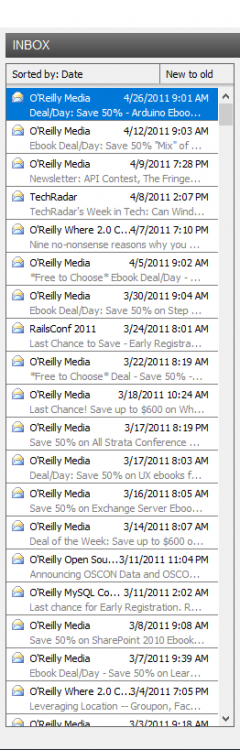
Viewing Emails in a Folder
To view emails in a folder, simply click on the folder name. The emails will be listed under the folder structure.
To change the order in which emails are displayed, click on the Sorting Criterion: text. Emails can be sorted by:
- Date
- From/To (the sender and recipient of the email)
- Subject
To reverse the order in which emails are displayed, click on the area to the right of Sorting Criterion (as shown in the screenshot, "Newest to Oldest"). By default, the most recent email is displayed first.
Refreshing the View
To refresh the folder list, click on a folder and press the F5 key on your keyboard.
To refresh the email list, click on the folder again.
Starting an Advanced Search in a Folder
To start an advanced search in a folder, right-click on the folder and select Search Here.... The Advanced Search will be displayed, and the folder is pre-selected.
Quick Search
With quick search, you can review all emails in the archives you have access to. This feature is especially suitable for simple queries; alternatively, an advanced search can be used.
Using Quick Search
The search field is located in the upper left corner of the MailStore Client. Enter one or more keywords and press the ENTER key. The search results are displayed, with keywords appearing in the subject line or subject field highlighted.
Searching for Word Parts
To display all emails containing a word with a specific part, use the wildcard character (*). For example:
- auto* will find Automatic, automatic, automobile, etc.
- example.com will find all email addresses and domain names containing example.com.
- firstname.lastname* will find all email addresses containing firstname.lastname.
Searching for Words with Unknown Letters
To display all emails that contain a word whose correct spelling you do not know, use the question mark (?). For example:
- Me?er will find Meier and Meyer, but not Maier.
- The question mark (?) cannot be used at the beginning or end of a word; instead, use the wildcard character (*).
Searching for Phrases
To search for words that appear consecutively and in a specific order, use quotation marks ("). For example:
- "Microsoft Windows" will find the text Windows following Microsoft, but not Microsoft Works or Windows 95.
Limiting by Fields
A search for keywords or word groups can be limited to specific fields. For example:
- subject:News will search only in the Subject field.
- from:john@mailstore.com will search only in the From field.
- to:michael@mailstore.com will search only in the To field.
- cc:lisa@mailstore.com will search only in the Cc field.
- bcc:customers@mailstore.com will search only in the Bcc field.
- bcontent:billing will search only in the body of the message.
- acontent:billing will search only in the attachments of the message.
Excluding Words
To narrow down a search, you can specify words that should not appear in the emails. To exclude words from the search results, add a minus character (-) before the word. For example:
- ZDNet -download-tip will find all emails from ZDNet that do not contain the phrase download tip.
Combining Search Options
Any of the above search options can be combined. For example:
- ZDNET -"Daily Update" will find all emails from ZDNet that do not contain the consecutive words Daily Update.
- from:ZDNET bcontent:MailStore will find all emails from ZDNet that contain MailStore in the body of the message.
- from:billing@example.com acontent:bill will find all emails from billing@example.com that contain bill in the attachments.
- to:recruiting@example.com -sales will find all emails sent to recruiting@example.com that do not contain the word sales in any part of the email.
- from:billing@example.com to:myaddress@company.tld acontent:bill -subject:admonition will find all emails from billing@example.com to myaddress@company.tld that contain bill in the attachments but do not contain admonition in the subject.
About Special Characters
Words found in emails or attachments that are indexed, consisting of a combination of alphanumeric (letters and numbers) and non-alphanumeric characters (spaces, line breaks, delimiters, or other control characters), can only be returned in search results when searching for the alphanumeric part.
For example, when searching for ad, ad.soyad, and soyad, emails containing the word ad.soyad will be returned.
Commonly used characters include:
- Period (.)
- Comma (,)
- Semicolon (;)
- Hyphen (-)
- Underscore (_)
- At sign (@)
- Forward slash and backslash (/, )
- Null character (NUL)
Advanced Search
Using advanced search, you can run complex queries via the MailStore Client. The scope of these queries can be defined according to specific archive folders and not only refer to the email content but also include fields such as the email date, archiving date, or email size. Email attachments can also be searched if they are properly indexed for search.
Using Advanced Search
In the MailStore Client, click Search Email and enter your search criteria. The criteria are combined with AND, meaning the search will only return emails that meet all the criteria. Click Search to start the search.
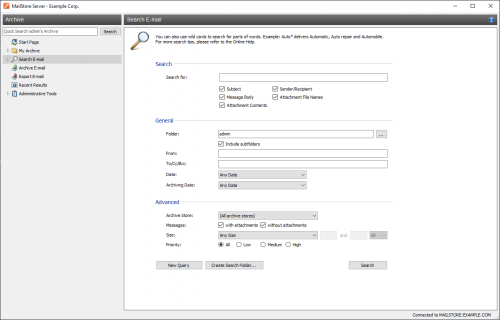
Search Criteria under "Search"
Enter a keyword or phrase in the text field and specify where MailStore should perform the search. The following options are available:
- Subject - Searches in the subject line of the email.
- From/To - Searches in the "From," "To," "Cc," and "Bcc" fields.
- Message Body - Searches in the plain text or HTML parts of the email (depending on availability).
- File Names of Attachments - Searches in the file names of email attachments.
- Attachment Content - Searches in the content of email attachments. Whether and to what extent attachments can be searched depends on the specified indexing options.
All options described in the Quick Search section, such as word phrases and wildcard characters, are also available in the Search Text field.
Search Criteria under "General"
Under General, the following options are available:
- Folder - The folder to be searched by MailStore can be selected here. By default, all folders that the current user can read are selected. You can also select folders using the folder structure by clicking on the button next to the text field.
- Include Subfolders - If selected, MailStore will not only search the selected folder (e.g., Inbox) but also all subfolders created within it (e.g., Inbox / Projects 2008 / Cost Optimization).
- From - All keywords or email addresses entered here are only searched in the sender field of the email.
- To/Bcc - All keywords or email addresses entered here are only searched in the recipient fields of the email.
- Date - The time period that the search should cover can be selected here. A predefined range such as Yesterday or This Year can be selected, or Custom can be selected to manually specify a period. In this case, the start and end dates will be included.
- Archiving Date - The time frame for the search can be selected here. A predefined range such as Yesterday or This Year can be selected, or Custom can be selected to manually specify a period. In this case, the start and end dates will be included.
All phrases and wildcard characters described in the Quick Search section are also available in the From and To/Bcc fields.
Search Criteria under "Advanced"
Under Advanced, the following options are available:
- Archive Repository - If the archive consists of multiple archive repositories, the search can be limited to only one of them. By default, all archive repositories are searched.
- Messages with/without Attachments - By default, all messages are searched regardless of whether they have file attachments or not. To exclude certain types of emails from the results, uncheck the relevant checkboxes. Note: Elements such as background images may be considered attachments, so these searches can sometimes be imprecise.
- Size - By default, all messages are searched regardless of their size. Use the appropriate fields provided to limit the search by message size, for example, at least 5 MB or between 400 and 600 KB.
- Priority - Emails are searched according to the priority level assigned by the sender. If Low is selected, all emails with a priority level lower than Normal are returned. If High is selected, all emails with a priority level higher than Normal are returned. Emails without any priority information are assumed to have a Normal priority level.
Starting the Search
Click Search to start the search. The results are displayed as a list in the left section of the main window.
Improving Search Results
After running a search, you can further narrow down the results by clicking Search Email again. Specify any additional search criteria and click Search once more.
Starting a New Search
To start a new search, click New Query. All search criteria will be reset to their default values (i.e., all folders that the current user can read are searched without restriction).
Saving Search Criteria for Reuse
Frequently used search criteria (e.g., "all invoices from last month") can be saved and reused later: click Create Search Folder and provide a meaningful name for the search.
The new search folder will be located under the Search Email folder on the left side of the application window.
You can view, rename, or delete the search criteria of a search folder via the context menu (New Search Query).
About Special Characters
Words found in emails or attachments that are indexed, consisting of a combination of alphanumeric (letters and numbers) and non-alphanumeric characters (spaces, line breaks, delimiters, or other control characters), can only be returned in search results when searching for the alphanumeric part.
For example, when searching for ad, ad.soyad, and soyad, emails containing the word ad.soyad will be returned.
Commonly used characters include:
- Period (.)
- Comma (,)
- Semicolon (;)
- Hyphen (-)
- Underscore (_)
- At sign (@)
- Forward slash and backslash (/, )
- Null character (NUL)
Email Preview
MailStore provides an integrated email preview that displays emails in the same way as standard email applications. To enable the preview, simply click on an email or use the arrow keys to highlight the desired email in the list.
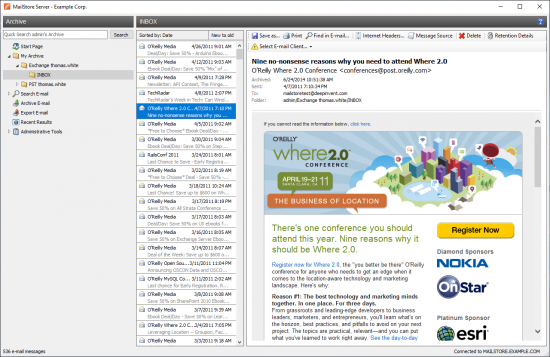
The menu bar above the email preview displays all functions available for the currently displayed email.
Save As...
To save the current email to any Windows folder, click Save As. Emails can be saved in the following file formats:
- RFC822 EML - These files can be opened independently of MailStore by double-clicking and can be transferred to applications such as Mozilla Thunderbird using drag-and-drop.
- Outlook MSG - These files can be opened or imported directly into all versions of Microsoft Outlook.
Using the print function, the displayed email will be printed including header information such as Date and Subject.
Find in Email
To search within the body of the current email, click Find in Email.
Internet Headers...
To view the header of the current email, including all MIME parts, click Internet Headers.
Message Source
To display the complete source of the current message, including all MIME parts, click Message Source.
Delete (Only with Appropriate Privileges)
To delete the current email from the archive, click Delete. Please note that you must have the appropriate privileges to use this function.
Storage Details (Only for Administrators)
This button is only available if retention policies are configured and enabled.
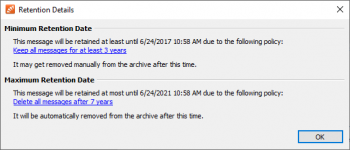
To view the minimum and maximum storage dates and any relevant retention policies, click Storage Details.
By clicking on a