
Tips for Using the MailStore Outlook Add-in
Our blog series aims to share our expertise with relevant parties, customers, and partners, so that everyone can make the best use of MailStore Server.


Our Technical Tips, presented in both blog article and video formats, provide you with all the information you need on a series of related topics. In this Technical Tip, we offer you some valuable tips on how to use MailStore's Outlook Add-in.
Are you already using the MailStore Outlook Add-in? The MailStore Outlook Add-in is the most popular method used by MailStore Server users to access email archives.
The MailStore Outlook Add-in offers you various options to quickly and transparently view your email archive:
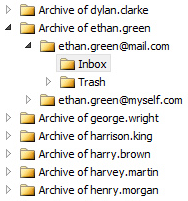 Archive Folder Structure - Quick search - suitable for simple searches.
- Advanced search - suitable for running more complex queries. This search feature provides extra selection and filter options based on date or email size.
- Archive folder structure - here, you can view all your archived folders and navigate through your email archive using the normal folder structure of your email client.
In addition, there are two more ways to speed up and simplify regular archive access:
Firstly, you can add items to the quick access toolbar from the MailStore tab. Once this quick access option is set up, you can call your archive directly from the MailStore menu bar in Microsoft Outlook without having to navigate through a complicated path. By integrating this option into your user interface, you'll have an additional tool at your disposal to perform quick searches with just one mouse click. In our video, we provide step-by-step instructions on how to set up this option in Microsoft Outlook 2019.
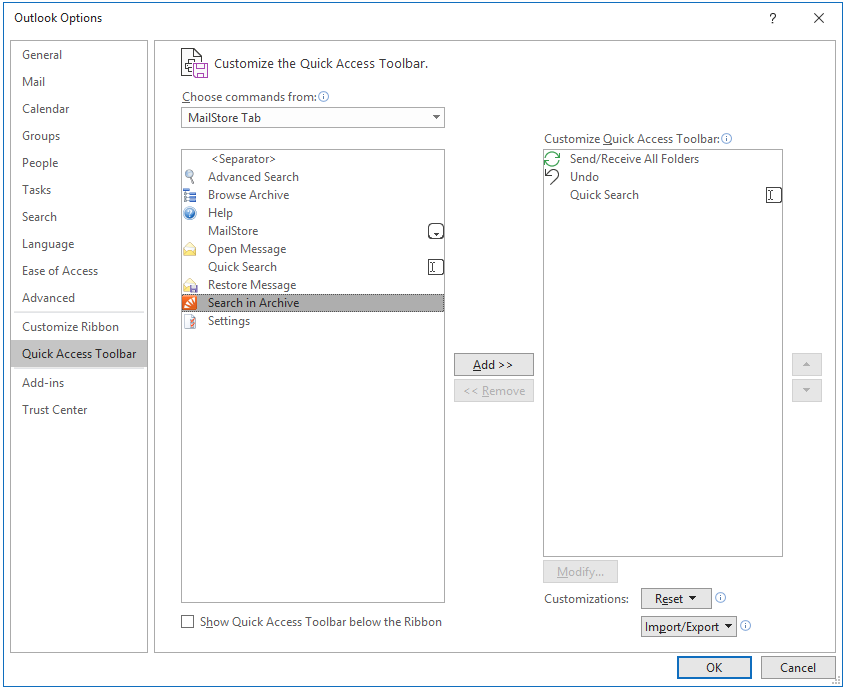
Microsoft Outlook Quick Access Toolbar
The second option requires you to save "frequent searches" for later use. Once you've done this, you can also run the saved search via Web Access, and you'll notice that your search now appears under Saved Searches in the archive folder area. Simply clicking on the folder will automatically start the search. This will save you a lot of time as you won't have to re-enter the same search criteria repeatedly. If you need to change a saved query, you can do so by calling Advanced Search - Open, making your changes, and saving them. In our video, we also show you in detail how to set up this search format.