
Email Archiving with MailStore Foundations
In MailStore Server, each archiving task is stored as an archiving profile. The archiving process is initiated by running such a profile.


Working with Archiving Profiles
In MailStore Server, each archiving task is stored as an archiving profile. An archiving process can be started by executing such a profile.
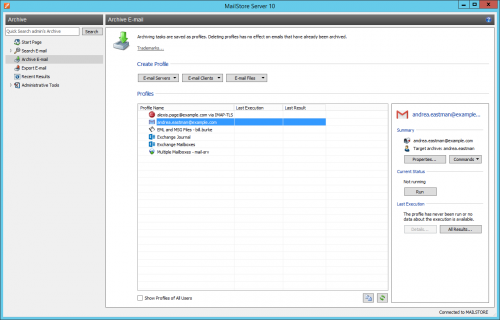
An archiving profile may contain the following information:
- NE: Mailbox p.berten@company.com
- NEREDE: Exchange server EXCHANGE01
- NEREDE (MailStore Server target archive): peter.berten
- KAPSAM: All folders except drafts
- SILME KURALI: Delete all archived emails older than 3 months from the Microsoft Exchange mailbox.
Creating an Archiving Profile
To create a new archiving profile, follow these steps:
- Start the MailStore Client and click on Archive Email to create and run an archiving profile.
- In the Profile Creation section of the application window, select the source where the emails should be archived (e.g., Microsoft Outlook). A wizard opens.
- In the initial steps of the wizard, several settings for the archiving profile can be determined. These include folder selection (e.g., "Inbox") or deletion rules (by default, emails are not deleted).
- If you have logged in as a MailStore Server administrator, you will be asked to select the target archive where the emails should be stored. If you have logged in as a normal user, the relevant user archive is used automatically.
- In the final step, you can specify a name for the archiving profile. Profiles of type "Email Server" can also be configured to run automatically here. After clicking the Finish button, the archiving profile is listed under Saved Profiles and can be executed immediately if desired.
Please note: Only MailStore Server administrators can archive emails to target archives outside of their own archives. This is not possible for normal MailStore Server users.
Manually Starting the Archiving Process
If automatic execution of an archiving profile was not configured during its creation (only for Email Servers type), you can manually start the archiving profiles whenever you want. It is recommended to manually start the first archiving process to detect possible configuration issues (e.g., incorrect credentials) as early as possible.
To manually start the archiving process, select the archiving profile you want to execute from the list under Saved Profiles and click Run.
A progress window appears. After the archiving process is completed, you can click on Details to get more information about possible errors. There is also a debug log available here.
In addition to manual execution, profiles can be run automatically according to an archiving schedule. Additional information on this topic is available in the section Automating the Archiving Process.
Running an Archiving Profile Multiple Times
Any archiving profile can be executed as many times as you want without concern. MailStore Server only archives emails that have not yet been stored in the target archive. MailStore Server also detects whether any email has been moved to a different folder in the source application (e.g., Microsoft Outlook) and re-creates these moves in the archive. Already archived emails, which are categorized as a folder containing messages sent by MailStore, can be moved to a folder categorized as not containing messages sent by MailStore and archived again. This situation is also applicable in reverse.
Editing Archiving Profiles
To edit an existing archiving profile, follow these steps:
- Select the archiving profile you want to edit from the Saved Profiles list and click on Properties.
- Navigate between profile pages using Next and Back, and change the settings you want.
- Save the new settings by clicking on OK on the last page.
- You can stop editing the archiving profile at any time by clicking Cancel and no changes will be made.
Deleting Archiving Profiles
If they are no longer needed, you can delete an existing archiving profile.
- Right-click on the archiving profile you want to delete or click Commands and select Delete
- A confirmation request appears. Click OK to confirm.
Please note: Deleting an archiving profile has no effect on already archived emails. They are still preserved in the archive.
Changing the Owner of an Archiving Profile
As a MailStore Server administrator (admin), you can change the owner of an archiving profile. This allows you to prepare archiving profiles for your users and then they can run them on their own.
- Right-click on the profile you want to change and select Change Owner.
- In the next dialog, select the new owner of the profile.
- Confirm your selection by clicking OK.
Note on foreign archives: If you, as a MailStore Server administrator, select a target archive that does not belong to the new profile owner, execution of the profile by the new owner will fail if the new owner is not a MailStore Server administrator themselves. Only MailStore Server administrators can archive emails to target archives outside of their own archives. This is not possible for normal MailStore Server users.Note on login privileges: If you revoke the login privileges of the user to whom you assigned the profile, the profile will not run.
Managing and Running Archiving Profiles for Other Users
As a MailStore Server administrator (admin), you can also manage archiving profiles created by other users.
- In the Saved Profiles section, enable the option to Show All Users' Profiles.
- You can now edit, run, or delete these profiles as you would your own.
Special Case: Executing Archiving Profiles for Other Users' Email Clients
It is generally logical to execute archiving profiles for email clients like Microsoft Outlook or Mozilla Thunderbird on the PC where the respective email client is installed because this client stores the necessary data for emails and local access on that PC.
Example: If user A has an archiving profile for Microsoft Outlook, you can view and edit this profile via MailStore Client as a MailStore Server administrator. However, running this profile is only logical if executed using the MailStore Client installed on user A's computer because only then can access the locally stored data.
This information applies only to archiving profiles listed under the Email Clients section.
Archiving Specific Folders
By default, MailStore Server archives all emails from the email application or mailbox (the list may vary according to the system):
- Deleted Items - Emails deleted by the user
- Drafts - Emails that are still being edited and have not yet been sent
- Junk Email - Emails classified as spam
- Outbox - Emails that are to be sent and will be listed under Sent Items after being sent
Standard settings can be customized; folders can be included or excluded for each archiving profile if needed.
Please note: When specifying folder names manually, pay attention to uppercase and lowercase letters. These declarations are case-sensitive.
General Procedure
When creating a new archiving profile, you can directly select the folders to be archived. Alternatively, you can set the selection for existing profiles. Additional information on creating and editing archiving profiles is available in the section Working with Archiving Profiles. The following screenshot shows how to access the folder settings using a Microsoft Outlook archiving profile as an example:
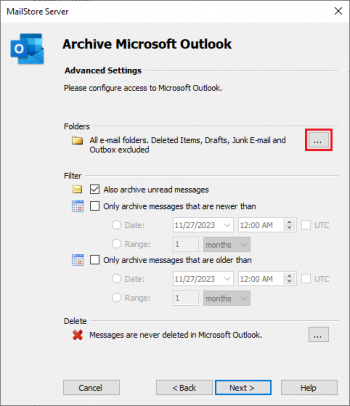
Folder Selection for Archiving
You can specify which folders MailStore Server should archive. In this case, MailStore Server limits the archiving to the selected folders and ignores the others. In profiles that archive multiple mailboxes, there is no Add button. You must manually enter the folders.
-
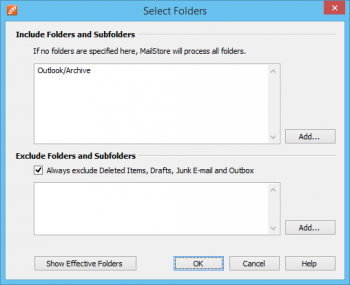
Click on the Add option under Folders and Subfolders Include for folder selection.
-
Select a folder.
-
You can also specify whether to include the subfolders of the selected folder using the Include Subfolders option.
-
Click OK to add the folder to the list.
Example: You have created a folder called Archive in your email application or mailbox; the user moves all emails to be archived there. In this case, add the Archive folder to the include list. This way, only this single folder is archived.
Excluding Folders from Archiving
MailStore Server can be configured to always exclude specific folders from the archiving process. In profiles that archive multiple mailboxes, there is no Add button. You must manually enter the folders to be excluded.
-
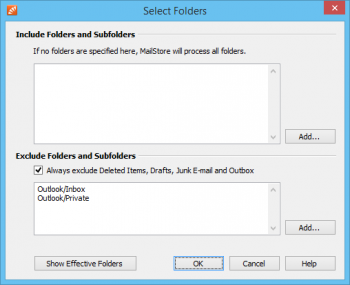
Click on the Add option under Folders and Subfolders Exclude for folder selection.
-
Select a folder.
-
You can also specify whether to exclude the subfolders of the selected folder using the Include Subfolders option.
-
Click OK to add the folder to the list.
Example 1: Emails in the Inbox should not be archived because they will either be deleted or moved to a project folder by the user. In this case, add the Inbox folder to the list of folders to be excluded.
Example 2: Emails in a folder named Private should not be archived because they may contain personal information that is illegal in certain countries.
Please note: Depending on the system, some folders (e.g., Deleted Items) are always excluded from the archiving process. To disable this automatic exclusion feature, clear the Always exclude checkbox.
Using Regular Expressions to Include or Exclude Folders
In MailStore Server, you can include or exclude folders using regular expressions. The syntax follows the Regular Expressions Specification in .NET Framework 4.5.1. You can only prefix a regular expression with || or |i| (case sensitivity/insensitivity).
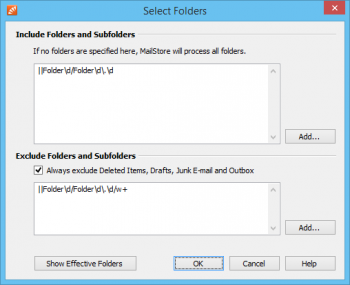
Examples:
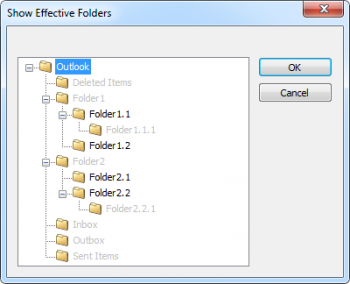
- The regular expression "||Example Folder\d/Folder\d\d.\d" includes Folder1/Folder1.1 in the archiving.
- The regular expression "||Folder\d/Folder\d.\d/\w+" prevents the archiving of other subfolders with the above structure. The result may look like this:
Defining Sent Items Folders
The message list in the archive shows the sender of sent messages and the recipient of received messages. Therefore, users always see their communication partners in the message list.
When archiving user mailboxes, sent messages are identified via the folder they are in. When archiving Exchange and Outlook profiles, MailStore can automatically detect and cannot be set manually the sent items folder. When archiving from IMAP servers that implement the SPECIAL-USE capability, MailStore can also detect the sent items folder if this option is enabled in the archiving profile. Since IMAP clients may not support this feature, they might have created their own sent items folders, resulting in multiple folders containing sent items. To ensure MailStore can detect all sent items, the sent items list folder can be expanded in IMAP archiving profiles.
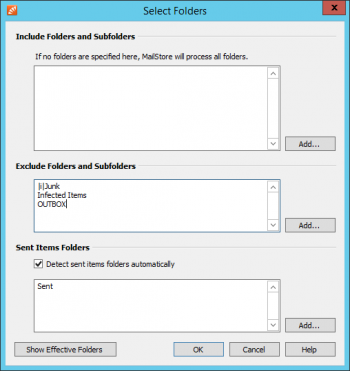
If the communication partner appears incorrectly in the message list, a MailStore administrator can change the message type by right-clicking on the message in the MailStore Client and selecting Change Message Type.
When other users change the message type, the restriction preventing access should be removed. The archiving profile should be configured to prevent the need for manual message type changes.
Displaying Selected Folders for Archiving
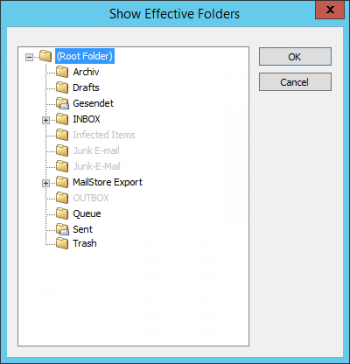
To verify the selected settings, click on Show Effective Folders in folder selection. This displays all folders that will be archived in practice. Folders shown in gray are not archived. In IMAP archiving profiles, a small envelope symbol is added to folders containing sent messages. This functionality is not supported for profiles that archive multiple mailboxes.
Specifying Filter Criteria for Archiving
In MailStore Server, you can specify filter criteria for most archiving profiles to limit the archiving to certain emails. The following filter options are available:
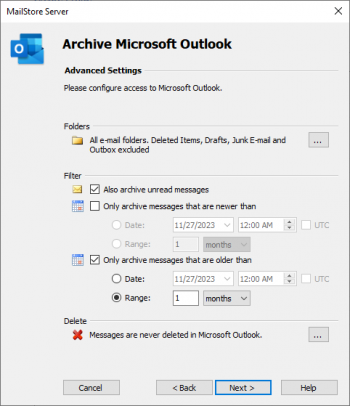
- Archive Unread Messages: By default, MailStore Server archives emails without considering their read/unread status. Disabling this option limits archiving to only messages marked as read.
- Archive Only New Messages / Archive Only Old Messages: Here, you can specify a particular date for MailStore Server to compare the send or receive date of emails to be archived. Only emails sent or received after or before this date will be archived. The UTC option specifies whether the date is in Coordinated Universal Time (UTC) or considers MailStore Server's local time zone.
- Range: With this option, MailStore Server archives only emails sent or received after or before a specific date range. This date is measured from the archiving date.
Deleting Emails After Archiving
MailStore Server can be used to reduce and keep the amount of emails stored in a source system to a minimum. The source system can be email servers, mailboxes, email applications, or email file or container files. Please note that in some archiving profiles, emails cannot be deleted due to the absence of the source system's interfaces.
The active deletion feature allows MailStore Server to automatically delete emails from the source system according to defined rules and time periods.
To avoid endangering ongoing business processes, flagged emails are not deleted by default. Configured deletion rules apply only to such emails when the delete flagged messages option is also activated. This *option is called "Delete Messages" for profiles archiving via the IMAP protocol to email servers. This option is only available in archiving profiles accessing email sources where messages can be flagged.
Alternatively, the flag can be removed from a source mailbox via an email client to enable deletion by MailStore Server without activating the additional option.
Functionality
By default, MailStore Server only copies emails from the source system to its archive. The archived emails remain in the source system and will not be deleted.
The deletion process is executed after all emails have been successfully archived by the archiving profile. During this process, it is clearly checked whether each email to be deleted has actually been archived. This ensures that only emails previously written to the archive are deleted from the source system.
Please note: Emails can be deleted from the source system only after archiving, which means that such deletions are always dependent on the archiving profile. In addition, deletion rules must be explicitly configured in this profile as described in more detail below. There are no other automatic processes for deleting emails from source systems beyond this functionality.
Configuration
Deletion conditions can be configured when creating a new archiving profile or for existing profiles under Advanced Settings > Delete.
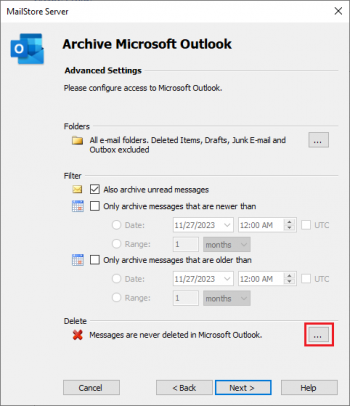
The following options are available:
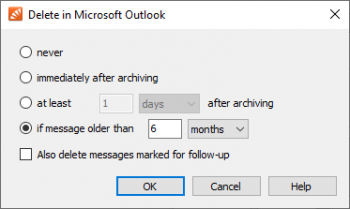
- Emails are never deleted from the source system. In fact, emails will be copied to the MailStore Server archive. This is the default setting.
- Emails are deleted from the source system immediately after archiving. In fact, emails will be moved to the MailStore Server archive. If an email has already been archived in a previous archiving run and is still in the archive, enabling this option will delete it during the next archiving run.
- Emails are deleted from the source system at least [point] after archiving. In fact, emails are initially copied to the MailStore Server archive and remain in the source system for a specified period of time, after which they are deleted during subsequent runs of the archiving profile.
- If the message is older than [point], emails are deleted from the source system if their send or receive date is before the specified period. In fact, emails with send or receive dates within the specified period are initially copied to the MailStore Server archive, while those with send or receive dates outside of the specified period are moved to the MailStore Server archive. During subsequent runs of the archiving profile, previously archived emails will be deleted from the source systems if they meet the defined age criteria.
Please note: If a deletion rule is configured with a filter date or range that specifies older messages, the deletion rule will also apply for a longer period. For example, if the filter range is set to archive only messages older than 1 month and the deletion rule is set to delete messages older than 1 day, only emails older than one month will be deleted because younger emails have not been archived. It is not possible to delete emails from source systems that have not previously been archived via MailStore Server.
Automating the Archiving Process
With MailStore, each archiving profile can be run automatically. MailStore Server distinguishes between two types of automatic execution. Email Servers category profiles can be continuously run by MailStore Server, while Email Clients and Email Files category profiles are only executed on clients via the Windows Task Scheduler.
Important Note: Scheduling the archiving process does not prevent users from deleting emails before they are archived via email applications or mailboxes. To ensure that all emails are archived, emails should be automatically archived upon receipt and sending.
Deleting a scheduled task (via MailStore's Administrative Tools or Windows Task Manager) does not delete the underlying archiving profile or the emails archived by the task.
Automating Execution of Email Server Archiving Profiles
If automatic execution is not already configured when creating a new archiving profile, follow these instructions to enable automatic execution of Email Server category archiving profiles.
- Start the MailStore Client
- Log in to MailStore Server
- Click on Archive Email.
- Right-click on an existing archiving profile in the Saved Profiles list or click on Commands and select Run Automatically...
- In the Automatic Execution dialog, you can specify the settings for continuous execution: Wait between runs... seconds. This determines how long MailStore Server should wait before the next execution of the archiving profile.
- Do not run This option allows you to specify a period during which the archiving profile is not executed. For example, this could be due to backup operations or other maintenance tasks.
- After specifying all settings, click OK.
MailStore immediately starts the continuous execution of the archiving profile in the background. The status of the selected archiving profile can be monitored in the Current Status section. The last application results can be viewed by clicking on Details..., and a list of all previous application results is displayed after clicking All Results....
Automating Execution of Email Client or Email File Archiving Profiles
Profiles from the Email Clients (e.g., Microsoft Outlook, Mozilla